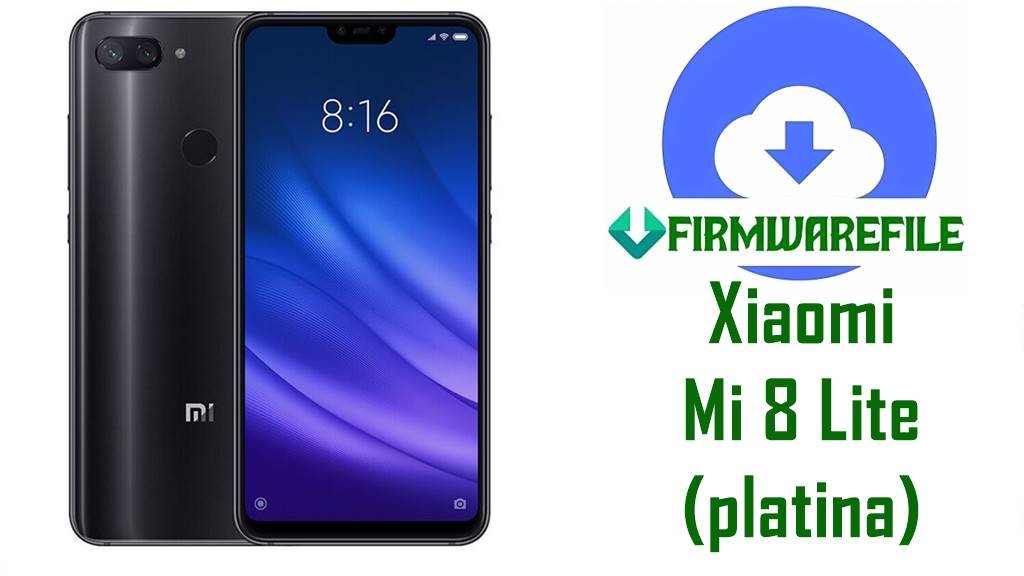
Download Xiaomi Mi 8 Lite Firmware (platina): Fix Battery Drain & App Crashes
This guide offers the complete firmware collection for the Xiaomi Mi 8 Lite (platina). If you’re facing battery drain, app crashes, or a bricked device, our verified download links and detailed flashing instructions will help you restore your phone’s performance. The Mi 8 Lite, with its Snapdragon 660 chipset and 6.26-inch FHD+ display, delivers a premium experience on a budget, but software issues can disrupt its functionality. Follow this guide to resolve these problems and optimize your device.
⚠️ Essential Pre-Flash Checklist
Flashing can lead to errors if not done correctly. Complete this checklist to ensure a smooth process. All data will be wiped, so a backup is critical.
- ✅ Full Data Backup: Save photos, contacts, and files to Mi Cloud, Google Drive, or a PC to prevent data loss.
- ✅ Charged Battery: Ensure your Mi 8 Lite has at least 60% battery to avoid interruptions during flashing.
- ✅ Windows PC: The Mi Flash Tool requires a Windows operating system.
- ✅ Original USB Cable: Use a high-quality USB cable for a stable connection to your PC.
- ✅ Unlocked Bootloader: Flashing requires an unlocked bootloader. Use the official Mi Unlock Tool (expect a 7-15 day waiting period).
- ✅ Required Software: Install the latest Mi Flash Tool and Xiaomi USB Drivers.
Understanding the Firmware: Types and Regions
Selecting the correct firmware is crucial to avoid bricking your Mi 8 Lite. Here’s a breakdown of the available options:
- Fastboot ROM (.tgz): A full factory image for Mi Flash Tool, ideal for unbricking or reverting to stock MIUI.
- Recovery ROM (.zip): Used with custom recoveries like TWRP for installing custom ROMs like Xiaomi.eu.
- Region Codes:
- CNXM: China version, optimized for local networks but may lack Google Play services.
- MIXM: Global version with Google services and multi-language support.
- RUXM: Russia-specific firmware with localized apps and settings.
Official Firmware Downloads for Mi 8 Lite (platina)
These firmware files are sourced from Xiaomi’s official servers or trusted repositories for reliability and security. Choose the latest version for your region to ensure optimal performance.
| Region | MIUI Version | Android | Release Date | Download Link |
|---|---|---|---|---|
| China (CNXM) | V12.5.1.0.QDTCNXM | 10.0 | 2021-06-18 | Fastboot ROM |
| Global (MIXM) | V12.0.3.0.QDTMIXM | 10.0 | 2020-09-14 | Fastboot ROM |
| Russia (RUXM) | V12.0.1.0.QDTRUXM | 10.0 | 2020-09-04 | Fastboot ROM |
Recommended Custom ROMs
For users facing bloatware or seeking a more modern OS, the Xiaomi.eu ROM offers a debloated MIUI experience, while other custom ROMs can provide newer Android versions for the Mi 8 Lite’s capable Snapdragon 660.
- Xiaomi.eu ROM: V12.5.1.0.QDTCNXM Based on Android 10 – Provides a lightweight, optimized MIUI experience with Google services.
How to Flash: Step-by-Step Instructions
Choose the flashing method based on your firmware type: Fastboot for official .tgz files or Recovery for custom .zip files.
Method 1: The Fastboot Method (Official Stock ROMs)
- Unzip the Firmware: Extract the .tgz file using 7-Zip to obtain a folder with an “images” subfolder and flash scripts.
- Launch Mi Flash Tool: Open the Mi Flash Tool with administrator privileges on your Windows PC.
- Enter Fastboot Mode: Power off your Mi 8 Lite, then press and hold Volume Down + Power until the Fastboot logo appears.
- Connect to PC: Plug your phone into your PC using the USB cable.
- Load Firmware: In Mi Flash Tool, click “select” and choose the extracted firmware folder. Click “refresh” to detect your device.
- Choose Flash Option: Select “clean all” for a complete reset (recommended for stability). Avoid “clean all and lock” unless you’re certain of the ROM’s region compatibility.
- Start Flashing: Click “flash” and wait 5-10 minutes. Do not disconnect the phone.
Troubleshooting Tip: If Mi Flash Tool fails to detect your Mi 8 Lite, try reinstalling the Xiaomi USB Drivers or switching to a USB 2.0 port for better connectivity.
Method 2: The Recovery Method (Custom ROMs)
- Install TWRP: Ensure TWRP is installed on your Mi 8 Lite. Download it from TWRP’s Android File Host.
- Transfer ROM: Copy the .zip ROM file to your phone’s internal storage or an SD card.
- Boot into Recovery: Power off your phone, then press Volume Up + Power until the TWRP logo appears.
- Wipe Data: In TWRP, go to “Wipe” > “Advanced Wipe” and select Dalvik/ART Cache, Cache, and Data. Swipe to confirm.
- Install ROM: Return to the main menu, tap “Install,” select the .zip file, and swipe to flash.
- Reboot: Reboot to system after installation completes.
After the Flash: First Boot and Setup
The first boot after flashing may take 10-15 minutes as the system initializes. Don’t interrupt if it seems stuck on the Mi logo. Once booted, follow the setup wizard and restore your data from your backup.
Frequently Asked Questions (FAQs) for the Mi 8 Lite
- Q1: Why does my Mi 8 Lite have battery drain issues? A: Battery drain can result from outdated firmware or background apps taxing the Snapdragon 660. Flashing the latest ROM (e.g., China V12.5.1.0 or Xiaomi.eu) can optimize power efficiency.
- Q2: How can I fix app crashes on my Mi 8 Lite? A: App crashes are often caused by software conflicts or corrupted system files. Flashing a clean stock ROM or the debloated Xiaomi.eu ROM can stabilize the system.
- Q3: Will the Mi 8 Lite receive Android 11 or newer? A: The Mi 8 Lite is officially capped at Android 10 with MIUI 12.5. To experience Android 11 or later, you’ll need a custom ROM like LineageOS (if supported for platina).