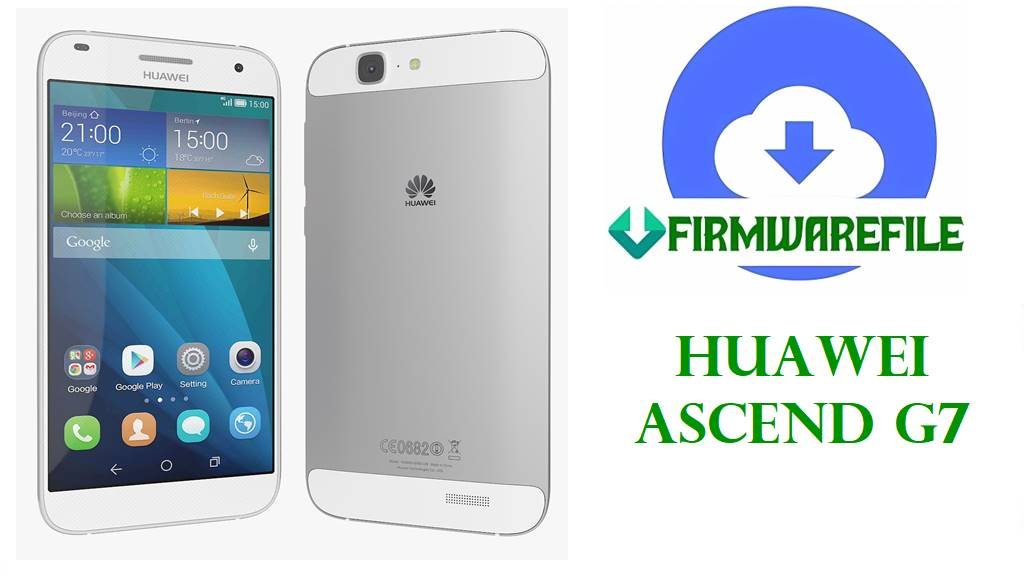
Fix Huawei Ascend G7 Bootloop, Dead Boot & Software Issues with Official Stock Firmware
The Huawei Ascend G7, released in October 2014, became a popular mid-range smartphone featuring the Qualcomm Snapdragon 410 processor, a spacious 5.5-inch HD IPS display, and solid 13MP rear camera. Despite its durability, users across multiple regions and model variants (G7-L01, G7-L11, G7-UL20, G7-TL00, G7-L03) frequently encounter critical software issues including endless bootloops where the device restarts repeatedly on the Huawei logo, sudden “dead boot” conditions where the screen remains completely black, “System UI has stopped” crashes, Wi-Fi/mobile connectivity failures after firmware updates, rapid battery drain, or the device becoming completely unresponsive after a failed OTA update or root attempt.
The comprehensive firmware recovery packages listed below are essential for resolving these catastrophic software failures. These official factory stock ROM files repair corrupted system partitions, fix bootloader issues, resolve EMUI version conflicts, and restore your Huawei Ascend G7 to factory specifications. Whether you need to recover from EMUI 3.0, 3.1, or 4.0 versions, or you’re switching between different regional variants, the firmware files below support clean flashing via Dload (SD card recovery), HiSuite, or Fastboot methods.
⚠️ CRITICAL WARNING: Know Your Model Before Flashing
The Huawei Ascend G7 exists in five primary variants: G7-L01 (Global), G7-L03 (Americas), G7-L11 (Asia-Pacific), G7-UL20 (China), and G7-TL00 (China Telecom). Flashing the wrong model firmware will cause network bands to be incompatible, resulting in no signal, no 4G connectivity, or invalid IMEI. The device may also become stuck in a bootloop unable to recover. Always verify your exact model in Settings → About Phone before downloading any file. Additionally, flashing will erase all personal data permanently. Ensure your battery is charged above 60% before starting—power loss during flashing will hard-brick your device.
Huawei Ascend G7 Firmware Details
| Device Name | Huawei Ascend G7 (Also known as Huawei G7 or Huawei Cannes) |
|---|---|
| Model Identifiers | G7-L01 (Global/International), G7-L03 (Americas), G7-L11 (Asia-Pacific/Southeast Asia), G7-UL20 (China), G7-TL00 (China Telecom) |
| Chipset | Qualcomm Snapdragon 410 (MSM8916), Quad-core 1.2 GHz ARM Cortex-A53, Adreno 306 GPU |
| Display | 5.5-inch IPS LCD, 720 × 1280 pixels resolution (267 ppi), Corning Gorilla Glass 3 |
| Storage & Memory | 16GB internal storage (eMMC 4.5), 2GB RAM |
| Battery | 3000 mAh non-removable Li-Po, fast charging support |
| Camera | Rear: 13MP f/2.0 autofocus with LED flash, 1080p@30fps video; Front: 5MP |
| Software Versions | Android 4.4.2 KitKat / EMUI 3.0 (launch), Android 5.1 Lollipop / EMUI 3.1 (update), Android 6.0 Marshmallow / EMUI 4.0 (regional variants) |
| Main Issues Reported | Persistent bootloop after OTA updates, device stuck on Huawei logo, black screen (dead boot), “System UI not responding” errors, random app crashes, Wi-Fi/4G connectivity drops, battery draining extremely fast, touchscreen unresponsiveness, failed firmware updates causing corruption |
| Flash Methods Supported | Dload (SD card recovery mode), HiSuite (eRecovery/Fastboot), Fastboot via USB |
| Use Cases for Files Below | Unbrick bootlooped devices, fix dead boot conditions, downgrade EMUI versions when newer builds cause problems, restore warranty-eligible stock firmware, repair corrupted system partitions, fix “This device has loaded a different operating system” errors, restore regional network settings |
Download Official Firmware for Huawei Ascend G7
| Filename | Model | Region | Android/EMUI | Build Version | Size | Flash Method | Special Notes | Download |
|---|---|---|---|---|---|---|---|---|
| HUAWEI_HUAWEI G7-L01_G7-L01C432B350_2016-05-01.rar | G7-L01 | Global/International | Android 6.0 / EMUI 4.0 | C432B350 | 1.54GB | Dload/HiSuite | Latest Global Build (May 2016) – Most stable version for G7-L01; includes Android 6.0 Marshmallow with complete system stability improvements | Download (MEGA) |
| Huawei_G7-L01_V100R001C00B250CUSTC185D001.zip | G7-L01 | Global | Android 5.1 / EMUI 3.1 | V100R001C00B250 | 1.08GB | Dload/HiSuite/Fastboot | Older EMUI 3.1 build; use for downgrading from problematic EMUI 4.0 versions | Download (MediaFire) |
| G7-L01_C464B540_Firmware_Turkey_Nonspecific_Android6.0_EMUI4.0.tar | G7-L01 | Turkey (Regional) | Android 6.0 / EMUI 4.0 | C464B540 | 1.66GB | Dload/HiSuite | Regional build for Turkey market; includes Turkish language and regional carrier settings | Download (Google Drive) |
| CAN-L01_Cannes-L01C738B130CUSTC738D002_Firmware_Slovenia_Nonspecific_Android6.0_EMUI4.0.rar | G7-L01 | Slovenia (EU) | Android 6.0 / EMUI 4.0 | C738B130 | 1.04GB | Dload/HiSuite | European regional build; complies with EU network bands and GDPR standards | Download (Google Drive) |
| HUAWEI_G7_G760-L03_Firmware_Andriod 4.4.4_EMUI_3.0_V100R001C119B261_Canada.zip | G7-L03 | Canada/North America | Android 4.4.4 / EMUI 3.0 | V100R001C119B261 | 1.04GB | Dload/HiSuite | Original launch firmware for G7-L03; use for recovery or downgrading from newer EMUI versions | Download (Google Drive) |
| Huawei_Ascend_G7_G760-L03_V100R001C00B251_Board_Software_Android_4.4.4_EMUI_3.0_HMT.zip | G7-L03 | Global (Board Software) | Android 4.4.4 / EMUI 3.0 | V100R001C00B251 | 1.04GB | Board Loader / HiSuite | Emergency Recovery – Low-level board software for completely dead devices; use only when other methods fail | Download (Google Drive) |
| G7-L11_V100R001C900B040CUSTC636D050_Firmware_Malaysia_Philippines_Singapore_Channel-Others_Android_4.4.4_KitKat_EMUI_3.0_05012WCP.zip | G7-L11 | Malaysia / Philippines / Singapore | Android 4.4.4 / EMUI 3.0 | V100R001C900B040 | 1.09GB | Dload/HiSuite | Southeast Asian regional build; compatible with L11 Asian variants only | Download (Google Drive) |
| G7-L11_C636B330CUSTC636D062_Firmware_Malaysia_Singapore_Channel-Others_Channel-Others_Android 5.1_EMUI 3.1_05012WCP.zip | G7-L11 | Malaysia / Singapore (Latest) | Android 5.1 / EMUI 3.1 | C636B330 | 1.27GB | Dload/HiSuite | Latest EMUI 3.1 Build for G7-L11 – Recommended for Southeast Asian devices; stable Android 5.1 update | Download (Google Drive) |
| Huawei_G7_Firmware_G7-L11_Android 5.1_EMUI 3.1_C636B330CUSTC636D062_Lao People’s Democratic Republic_Channel-Others.zip | G7-L11 | Laos (Regional) | Android 5.1 / EMUI 3.1 | C636B330 | 1.23GB | Dload/HiSuite | Laotian regional variant; same base as Malaysia/Singapore but with Lao language support | Download (Google Drive) |
| HUAWEI_G7_Firmware_G7-L11_Android 6.0.1_EMUI 4.0_C185B510CUSTC185D004_Middle East&Africa.zip | G7-L11 | Middle East & Africa (Latest) | Android 6.0.1 / EMUI 4.0 | C185B510 | 1.3GB | Dload/HiSuite | Latest for G7-L11 – Android 6.0 Marshmallow with enhanced stability; best for ME/Africa regions | Download (Google Drive) |
| G7-L11C185B510 Full umt Read | G7-L11 | Universal (UMT Tool Backup) | Android 6.0.1 / EMUI 4.0 | C185B510 | 1.86GB | UMT Tool / Advanced | Complete partition backup for C185B510 build; use with UMT tool for advanced recovery (password: qwrhddqcrg) | Download (MediaFire) |
| Huawei_Ascend_G7_G7-UL20_V100R001CHNC00B251_221214_Dload.zip | G7-UL20 | China (Latest) | Android 4.4.4 / EMUI 3.0 | V100R001CHNC00B251 | 1.00GB | Dload | Latest China Build (December 2022) – Most recent firmware for Chinese G7-UL20 variant | Download (Google Drive) |
| Huawei_G7-TL00_V100R001C01B270.zip | G7-TL00 | China Telecom | Android 4.4.4 / EMUI 3.0 | V100R001C01B270 | 1.19GB | Dload | China Telecom regional variant; includes telecom-specific network configurations and band support | Download (MediaFire) |
Recommended Selection Guide: For global users with G7-L01, choose the C432B350 Android 6.0 build for maximum stability. For Asian/Southeast Asian G7-L11 devices, select the Middle East & Africa C185B510 EMUI 4.0 as it’s the latest. For Chinese devices, use the G7-UL20 Dload or G7-TL00 Telecom variant based on your original purchase region.
Before You Begin ⚙️
- 💾 Back Up Everything: Flashing will permanently erase all data, photos, messages, apps, and personal files on your Huawei Ascend G7. Use Google Drive, OneDrive, or export contacts before proceeding.
- 🔋 Ensure Full Battery: Charge your device to at least 60% or higher. A dead battery during flashing will permanently corrupt your device.
- 💻 Use a Windows PC: You need Windows 7, 8, 10, or 11 with reliable USB connectivity. Avoid USB hubs—use direct USB ports on the computer.
- 🔌 High-Quality USB Cable: Use the original or certified Huawei cable. Poor cables interrupt data transmission and cause flashing failures.
- 🧩 Install USB Drivers: Install Huawei USB drivers or Qualcomm MSM8916 drivers on your PC to enable proper device communication.
- 📥 Download Tools: Install HiSuite (for Dload/eRecovery method) or Fastboot drivers depending on your chosen flashing method.
- ⚡ Disable Security Software: Temporarily disable Windows Defender, antivirus, or firewall software that may block flashing tools.
- 💡 Read the Instructions: Follow the method section carefully for your specific firmware type to avoid mistakes.
📱 How to Flash Huawei Ascend G7 Firmware
Method 1: Dload (SD Card Recovery) – For .zip Files
Dload is Huawei’s native over-the-air recovery method using an SD card. This is the safest method for G7 devices and works for most firmware files listed above.
- Extract Firmware: Download your firmware file (e.g., de>HUAWEI_HUAWEI G7-L01_G7-L01C432B350_2016-05-01.rar) and extract it completely using WinRAR or 7-Zip. Locate the file named de>UPDATE.APP.
- Prepare Micro-SD Card: Format a microSD card (8GB or larger) to FAT32 using your PC. Copy the de>UPDATE.APP file to the root directory of the SD card (not in any subfolder).
- Insert SD Card: Power off your Huawei Ascend G7 completely. Insert the prepared microSD card into the device.
- Enter Dload Mode: Hold down Volume Up + Volume Down + Power buttons simultaneously for 10 seconds. The screen will show the Dload recovery interface with the Huawei logo and “Dload” text.
- Auto Flashing: The device will automatically detect the UPDATE.APP file on your SD card and begin flashing. A progress percentage will display on screen. This takes 5–10 minutes.
- Reboot: Once flashing completes (100%), the device will automatically reboot into Android. Remove the microSD card. Your phone will boot normally.
For comprehensive step-by-step instructions with screenshots and video guide:
Full Tutorial: How to Flash Huawei Firmware Using Dload Method
Method 2: HiSuite (eRecovery/Fastboot Mode) – Easiest GUI Method
HiSuite is Huawei’s official user-friendly tool for flashing. Use this if Dload mode is unavailable or you prefer a graphical interface.
- Download and Install HiSuite: Download HiSuite from Huawei’s official website on your Windows PC. Install it completely.
- Connect Device: Connect your Huawei Ascend G7 via USB cable to your PC. Ensure Qualcomm/Huawei drivers are installed and recognized.
- Enter eRecovery Mode: On the phone, hold Volume Up + Power for 10 seconds. A recovery menu will appear. Select “eRecovery” (or “Reboot to eRecovery”).
- Select Firmware in HiSuite: In HiSuite, click the “Repair” or “Restore” button. Select your downloaded firmware file (.rar or extracted folder). HiSuite will parse and display the firmware details.
- Start Flashing: Click “Start” to begin the flashing process. A progress bar will show percentage completion. Your device will reboot automatically when finished.
For detailed HiSuite flashing tutorial with troubleshooting:
Full Tutorial: How to Use Huawei Multi-Download Software & HiSuite
Method 3: Fastboot (Advanced) – For .zip Files and Experienced Users
Fastboot is a low-level flashing method useful when Dload or HiSuite methods are unavailable. Requires command-line knowledge.
- Extract Firmware: Extract the firmware ZIP file and locate the bootloader, recovery, system, and boot partition files.
- Boot into Fastboot: Power off the device. Hold Volume Down + Power until “Fastboot” appears on the screen.
- Connect USB: Connect the device to your PC via USB while in Fastboot mode.
- Flash via Command Line: Use fastboot commands to flash each partition: de>fastboot flash boot boot.img, de>fastboot flash system system.img, etc.
- Reboot: Once all partitions are flashed, type de>fastboot reboot to restart the device.
For complete Fastboot guide with detailed commands:
Full Tutorial: How to Flash Firmware Using Fastboot
Frequently Asked Questions (FAQs)
What specific G7 model do I have?
Go to Settings → About Phone on your device. Look for “Model” or “Device Name.” You will see one of: G7-L01 (Global), G7-L03 (Americas), G7-L11 (Asia-Pacific), G7-UL20 (China), or G7-TL00 (China Telecom). Download firmware matching your exact model only. Flashing mismatched firmware will cause network bands to be incompatible or brick your device.
Can I flash G7-L01 firmware on a G7-L11 device?
No. Absolutely do not do this. Each model variant is optimized for specific network bands and regions. Flashing incorrect firmware will result in no signal, loss of 4G connectivity, or invalid IMEI. Your device may also fail to boot. Always flash firmware matching your device model exactly.
My device is stuck in an endless bootloop. Which firmware should I use?
Use the latest firmware for your model: For G7-L01, use the C432B350 EMUI 4.0 build (May 2016). For G7-L11, use the C185B510 EMUI 4.0 build (Middle East/Africa). For Chinese variants, use the G7-UL20 or G7-TL00 builds. The Dload method is safest for bootloop recovery.
Can I downgrade from EMUI 4.0 to EMUI 3.0 or EMUI 3.1?
It depends on your device model. Some Huawei devices can downgrade, others cannot due to bootloader restrictions. The firmware files provided include both EMUI 3.0/3.1 and EMUI 4.0 versions, so you can try downgrading. If downgrading fails with a “verification error,” your bootloader likely prevents it. In this case, stick with the latest EMUI version for your model.
After flashing, my phone asks for a Google account to unlock. Is this normal?
Yes, this is Factory Reset Protection (FRP). After clean firmware flashing, your device requires you to enter the original Google account (Gmail) that was synced before. If you forgot the account, you can reset it via Google Account Recovery on a computer, or use the same Wi-Fi network the original account used to bypass FRP temporarily.
Will my warranty be affected by flashing firmware?
Yes. Flashing stock firmware from unofficial sources or using unofficial tools may void your warranty. However, flashing official Huawei firmware files (like those provided here) typically does not void warranty, as these are legitimate factory files. To be safe, contact Huawei support before flashing if you are within the warranty period and plan to claim service.