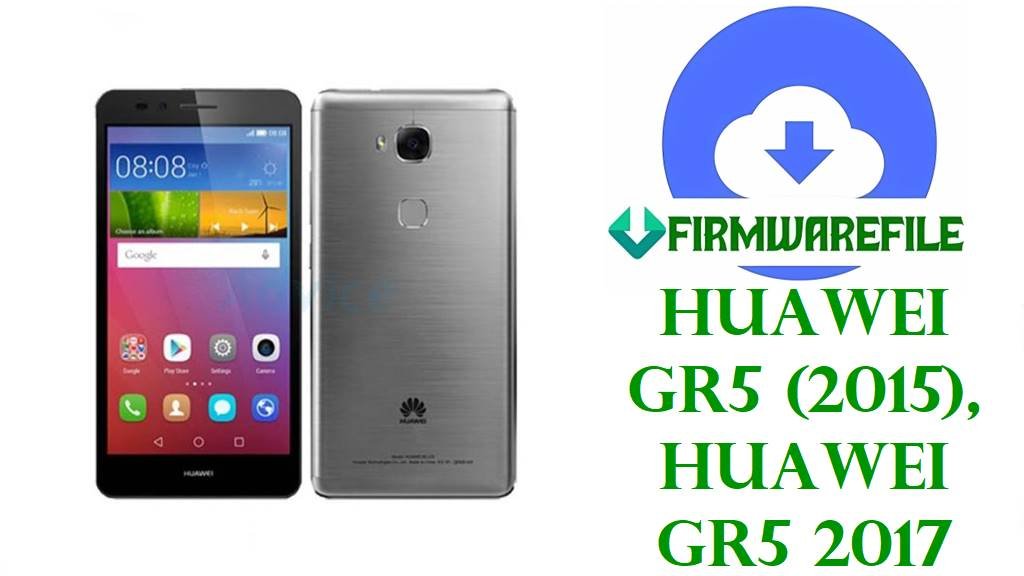
Fix Huawei GR5 Bootloop, Dead Boot & Software Issues with Official Stock Firmware
The Huawei GR5 is a mid-range smartphone series released in two generations: the original GR5 (2015) powered by Qualcomm Snapdragon 616, and the GR5 2017 variant featuring the more powerful HiSilicon Kirin 655 processor with 8-core architecture. Both devices feature a spacious 5.5-inch FHD+ IPS display, dual-camera setup, fingerprint sensor, and all-day battery life. Despite their solid specifications, users worldwide have reported critical software failures including persistent bootloops where the device continuously restarts on the Huawei logo, sudden dead boot conditions with a completely black screen, “System UI has stopped” crashes, extreme battery drain consuming 40%+ per hour, Wi-Fi/LTE connectivity failures, random app crashes, and complete system freezes after failed OTA updates or root attempts.
The official firmware recovery packages listed below are your definitive solution for these catastrophic software defects. These verified factory stock ROM files repair corrupted system partitions, resolve EMUI version conflicts (3.1, 4.0, 4.1, 5.0), fix bootloader problems, and completely restore your device to its original state. Supporting multiple regional variants (KII-L21, KII-L22, KII-L23, KII-L05, BLL-L21, BLL-L22, BLL-L23) across EMUI 3.1, 4.0, 4.1, 5.0, and 6.0+ versions, these files are essential for unbricking devices when standard factory reset fails.
🔴 CRITICAL WARNING: Model & Generation Mismatch = Permanent Brick
The Huawei GR5 exists in two distinct generations with completely different architectures: Original GR5 (KII-series, 2015) with Qualcomm Snapdragon 616, and GR5 2017 (BLL-series) with HiSilicon Kirin 655. Flashing firmware for the wrong generation or wrong regional variant causes instant, permanent, unrecoverable bricking. Regional variants (KII-L21 for Africa, KII-L22 for Asia-Pacific, KII-L05 for Canada) also have incompatible network bands. Flashing incorrect regional firmware causes no network signal, SIM not recognized, or invalid IMEI. Always verify your exact model AND generation in Settings → About Phone before proceeding. This process permanently erases all personal data including photos, messages, and apps. Ensure your battery is charged above 60%—power loss during flashing causes irreversible hardware corruption.
Huawei GR5 & GR5 2017 Firmware Details
| Device Names | Huawei GR5 (2015 original), Huawei GR5 2017 (Berlin) |
|---|---|
| Model Identifiers | Original GR5 (KII-series): KII-L21 (Africa/Middle East), KII-L22 (Asia-Pacific), KII-L23 (Americas), KII-L33 (Chile/Americas), KII-L05 (Canada); GR5 2017 (BLL-series): BLL-L21 (Europe/International), BLL-L22 (Asia-Pacific), BLL-L23 (Americas/Europe) |
| Chipsets | Original GR5: Qualcomm Snapdragon 616 (8939, 28nm, octa-core 1.5 GHz Cortex-A53, Adreno 405 GPU); GR5 2017: HiSilicon Kirin 655 (16nm, octa-core 4x 2.1 GHz + 4x 1.7 GHz Cortex-A53, Mali-T830 MP2 GPU) |
| Display | 5.5-inch IPS TFT LCD, 1920 × 1080 pixels (401 ppi), Gorilla Glass protection |
| Storage & Memory | 16GB / 32GB / 64GB internal (eMMC), 2GB / 3GB / 4GB RAM, microSDXC expandable up to 256GB (dedicated slot) |
| Battery | Original GR5: 3000 mAh; GR5 2017: 3340 mAh; both non-removable Li-Po |
| Camera | Original GR5: Rear 13MP + 2MP dual camera, 1080p@30fps; GR5 2017: Rear 12MP + 2MP dual camera, 1080p@30fps; both feature fingerprint sensor and front camera |
| Software Versions | Original GR5: Android 5.1 Lollipop / EMUI 3.1 (base) + EMUI 4.0 updates; GR5 2017: Android 6.0 Marshmallow / EMUI 4.1 (base) + EMUI 5.0.x updates, some regions Android 7.0 / EMUI 5.0.1+ |
| Main Issues Reported | Persistent bootloop after EMUI updates, dead boot/black screen, system UI crashes, extreme battery drain (40%+ per hour), Wi-Fi/LTE connectivity failures, random app crashes mid-use, touchscreen unresponsiveness, fingerprint sensor malfunction, camera app freezes, update failures with error codes, system partition corruption |
| Flash Methods Supported | Dload (SD card recovery), HiSuite (eRecovery), fastboot, recovery mode, QFIL (for some regional variants) |
| Use Cases for Files Below | Recover from hard bootloops, fix dead boot conditions, repair after root/custom ROM failures, fix system partition corruption, restore network functionality, downgrade EMUI versions when newer builds cause issues, unbrick soft-bricked devices, reset to factory state |
Download Official Firmware for Huawei GR5 & GR5 2017
| Filename | Model | Generation | Chipset | Region | Android/EMUI | Build | Size | Special Notes | Download |
|---|---|---|---|---|---|---|---|---|---|
| Huawei_GR5_Firmware_KII-L21_Android5.1_EMUI3.1_C185B130CUSTC185D002_Kenya_Channel-Others.zip | KII-L21 | Original GR5 | Snapdragon 616 | Kenya / Africa | Android 5.1 / EMUI 3.1 | C185B130 | 1.45GB | For African KII-L21 users; includes regional carrier bands for Africa | Download (Google Drive) |
| KII-L22_C81B130CUSTC81D003_Firmware_Philippines_Smart(Philippines)_Android 5.1.1_EMUI 3.1_05013TVA.zip | KII-L22 | Original GR5 | Snapdragon 616 | Philippines (Smart Carrier) | Android 5.1.1 / EMUI 3.1 | C81B130 | 1.5GB | Philippines carrier-specific build for Smart network; includes carrier optimization | Download (Google Drive) |
| KII-L22_C636B320CUSTC636D004_Firmware_Taiwan (Province of China)_Channel-Others_Android 6.0.1_EMUI 4.0_05013MCS.zip | KII-L22 | Original GR5 | Snapdragon 616 | Taiwan | Android 6.0.1 / EMUI 4.0 | C636B320 | 1.58GB | Latest KII-L22 Build. Taiwan regional build with Android 6.0.1 update; most stable for L22 | Download (Google Drive) |
| KII-L21_C185B321CUSTC185D001_Firmware_Lebanon_Algeria_Egypt_Ethiopia_Jordan_Morocco_South Africa_Sudan_Tunisia_Tanzania, United Republic of_Nonspecific_Android 6.0.1_EMUI 4.0.2_05013LEV.rar | KII-L21 | Original GR5 | Snapdragon 616 | Middle East / Africa (Multi-region) | Android 6.0.1 / EMUI 4.0.2 | C185B321 | 1.37GB | Latest KII-L21 Build. Multi-regional build for Middle East and African markets; Android 6.0 update | Download (Google Drive) |
| Huawei_GR5_Firmware_KII-L05_Android 6.0.1_EMUI 4.0_C654B330_Canada_Rogers.zip | KII-L05 | Original GR5 | Snapdragon 616 | Canada (Rogers) | Android 6.0.1 / EMUI 4.0 | C654B330 | 1.63GB | Canadian Rogers carrier variant; includes Rogers network bands and settings | Download (Google Drive) |
| Huawei_GR5_KII-L23_C900B076_Board_Software_West_European, Chile_Region_Nonspecific_Android_5.1.1_EMUI_3.1_05021UMR_HMT.zip | KII-L23 | Original GR5 | Snapdragon 616 | Europe / Chile (Board Software) | Android 5.1.1 / EMUI 3.1 | C900B076 | 743MB | Emergency Recovery – Low-level board software for completely dead KII-L23 devices; professional-grade recovery | Download (Google Drive) |
| Huawei_GR5_KII-L33_C900B076_Board_Software_Chile_Nonspecific_Android_5.1.1_EMUI_3.1_05021WXE_HMT.zip | KII-L33 | Original GR5 | Snapdragon 616 | Chile (Board Software) | Android 5.1.1 / EMUI 3.1 | C900B076 | 743MB | Emergency Recovery</strong – Low-level board software for dead KII-L33 devices; Chile-specific recovery | Download (Google Drive) |
| Huawei_GR5_KII-L33_C900B076_Chile_EMUI_3.1_05021WXE_5.1.1_QFIL.zip | KII-L33 | Original GR5 | Snapdragon 616 | Chile (QFIL variant) | Android 5.1.1 / EMUI 3.1 | C900B076 | 743MB | QFIL-compatible build for KII-L33; use for advanced recovery scenarios | Download (Google Drive) |
| Huawei_GR5_2017_BLL-L21_C10B383_EMUI5.0.1_05014CYS_Dload.zip | BLL-L21 | GR5 2017 | Kirin 655 | Europe / International | Android 7.0 / EMUI 5.0.1 | C10B383 | 1.62GB | Latest BLL-L21 Build. Android 7.0 Nougat with EMUI 5.0.1; most stable for European GR5 2017 | Download (Google Drive) |
| Huawei_GR5_BLL-L21_Berlin-L21_C10B383_EMUI5.0.1_05014CYS_Dload.zip | BLL-L21 | GR5 2017 | Kirin 655 | Europe (Berlin variant) | Android 7.0 / EMUI 5.0.1 | C10B383 | 1.62GB | European Berlin-L21 variant; same EMUI 5.0.1 as standard BLL-L21 | Download (Google Drive) |
| BLL-L21C185B376.zip | BLL-L21 | GR5 2017 | Kirin 655 | International | Android 7.0 / EMUI 5.0+ | C185B376 | 1.6GB | International build for BLL-L21 with later EMUI version; includes comprehensive system updates | Download (AndroidFileHost) |
| Huawei_GR5_2017_BLL-L22_B167_C636B167_6.0_OTA.zip | BLL-L22 | GR5 2017 | Kirin 655 | Asia-Pacific | Android 6.0 / EMUI 4.0+ | C636B167 | 1.87GB | OTA update package for BLL-L22; Android 6.0 variant for Asian markets | Download (Google Drive) |
| Huawei_GR5_2017_BLL-22_EMUI4.1_C636B150_Southern_East_Asia_6.0_Dload.zip | BLL-L22 | GR5 2017 | Kirin 655 | Southeast Asia (Dload) | Android 6.0 / EMUI 4.1 | C636B150 | 1.89GB | Southeast Asian regional build with EMUI 4.1; Dload-compatible format | Download (Google Drive) |
Critical Selection Guide: First, identify your generation. If you have KII-series models (KII-L21, KII-L22, KII-L05, KII-L23, KII-L33), you have the original 2015 GR5 with Snapdragon 616. If you have BLL-series models (BLL-L21, BLL-L22, BLL-L23), you have the 2017 GR5 with Kirin 655. Never mix generations. For European KII users, use KII-L21 C185B321 EMUI 4.0.2 (latest). For Asian KII users, use KII-L22 C636B320 EMUI 4.0 (latest). For European BLL 2017 users, use BLL-L21 C10B383 EMUI 5.0.1 (latest). For Asian BLL 2017 users, use BLL-L22 EMUI 4.1. Regional variants are critical—always match both generation and region exactly.
Before You Begin ⚙️
- 💾 Backup All Data: Flashing will permanently erase all files, including photos, messages, contacts, and apps. Use Google Drive or local computer backup before proceeding.
- 🔋 Charge Battery to 60%+: Ensure your Huawei GR5 battery is charged to at least 60% or higher. Battery depletion during flashing causes permanent motherboard corruption.
- 💻 Use Windows PC: Connect via a Windows 7, 8, 10, or 11 computer with stable USB connectivity. Avoid USB hubs—use direct USB ports.
- 🔌 Quality Micro-USB Cable: Use the original Huawei micro-USB cable or certified replacement. Defective cables interrupt flashing and cause device bricking.
- 🧩 Install USB Drivers: Install Qualcomm (for KII-series) or HiSilicon (for BLL-series) drivers on your PC. Drivers enable proper device communication.
- 📥 Download Tools: For KII-series: install QFIL/QPST if needed, or use Dload method. For BLL-series: install HiSuite for eRecovery or use Dload method.
- ⚡ Disable Security Software: Temporarily disable Windows Defender, antivirus, and firewall to prevent tool blocking.
- 📱 Verify Model & Generation: Check Settings → About Phone to confirm whether you have KII-series (original GR5) or BLL-series (GR5 2017), and your specific region code.
📱 How to Flash Huawei GR5 Firmware
Method 1: Dload (SD Card Recovery) – Easiest & Safest
Dload is Huawei’s native recovery method using an SD card. This method works for all GR5 variants (KII-series and BLL-series) and is the safest approach.
- Extract Firmware: Download and extract your firmware file using WinRAR or 7-Zip. Locate the extracted firmware folder containing system files.
- Prepare SD Card: Format a microSD card (16GB or larger) to FAT32. Copy all extracted firmware files to the root directory of the SD card.
- Insert SD Card: Power off your Huawei GR5 completely. Insert the prepared microSD card into the device (dedicated slot, not SIM tray).
- Enter Dload Mode: Hold Volume Up + Volume Down + Power simultaneously for 10 seconds until the Dload recovery screen appears (black screen with Huawei logo and “Dload” text).
- Automatic Flashing: The device automatically detects and begins flashing from your SD card. A progress percentage displays on screen. This takes 5–15 minutes depending on file size.
- Reboot: Once flashing reaches 100%, the device automatically reboots. Remove the microSD card and wait for the system to fully boot (5–15 minutes for first boot as system optimizes).
For detailed Dload guide with troubleshooting:
Full Tutorial: How to Flash Huawei Firmware Using Dload Method
Method 2: HiSuite (eRecovery) – For BLL-Series (GR5 2017)
HiSuite is Huawei’s official user-friendly tool for BLL-series (GR5 2017) devices with Kirin 655.
- Install HiSuite: Download HiSuite from Huawei’s official website and install on your Windows PC. Connect your GR5 2017 via micro-USB cable.
- Enable eRecovery: On your device, go to Settings → System → System Update → Repair. Alternatively, hold Volume Up + Power for 10 seconds to enter eRecovery mode.
- HiSuite Detection: Once eRecovery mode is active, HiSuite displays a dialog showing recovery detected. Confirm the prompt on your phone.
- Select Firmware: In HiSuite, click “Repair” or “Restore”. Navigate to your downloaded firmware file (.zip or .rar). HiSuite extracts and displays build information.
- Start Flashing: Click “Start”. A progress bar shows completion (typically 3–5 minutes). Do NOT disconnect USB during this time.
- Automatic Reboot: Upon completion, HiSuite displays success. Device automatically reboots into the new system.
For comprehensive HiSuite guide:
Full Tutorial: How to Use Huawei Multi Download Software & HiSuite
Frequently Asked Questions (FAQs)
How do I tell the difference between original GR5 (KII-series) and GR5 2017 (BLL-series)?
Check Settings → About Phone. Look for “Model”: KII-L21, KII-L22, KII-L23, KII-L05, KII-L33 = Original GR5 (2015) with Snapdragon 616. BLL-L21, BLL-L22, BLL-L23 = GR5 2017 with Kirin 655. This is absolutely critical—mixing generations bricks your device.
Can I flash KII-series firmware on a BLL-series device?
No. Absolutely never attempt this. The two generations have completely different chipsets, bootloaders, and system architecture. Mixing them causes instant, permanent, irreversible bricking. Your device will never boot again.
Can I flash European firmware on an Asian GR5?
No. Regional variants have different network band configurations. Flashing European firmware on an Asian device causes no 4G signal, SIM not recognized, or invalid IMEI. Always match your exact region AND model.
My device is bootlooping. Which firmware should I use?
If you have original GR5 (KII-series), use the latest EMUI 4.x build for your region (e.g., KII-L21 C185B321 for Africa). If you have GR5 2017 (BLL-series), use the latest EMUI 5.x build for your region (e.g., BLL-L21 C10B383 for Europe). The Dload method is safest for bootloop recovery.
After flashing, my device asks for Google account. Is this normal?
Yes, this is Factory Reset Protection (FRP). After clean firmware flashing, your device requires the original Google account (Gmail) synced before. If you forgot the account, use Google Account Recovery on a computer, or use the same Wi-Fi network the original account used. FRP is a security feature that cannot be bypassed.
Can I downgrade from a newer EMUI to an older one?
Yes. The firmware files include multiple EMUI versions (3.1, 4.0, 4.1, 5.0). If a newer EMUI version causes problems, you can downgrade to the previous version. Simply flash the older EMUI version using Dload or HiSuite.
Flashing failed with an error. What went wrong?
Common causes: (1) Wrong generation firmware (KII vs BLL), (2) Wrong region firmware, (3) Faulty USB cable/port, (4) Drivers not installed, (5) Low battery, (6) Antivirus blocking. Try: (a) Verify generation/region again, (b) Different USB port/cable, (c) Reinstall drivers, (d) Charge above 60%, (e) Disable antivirus.