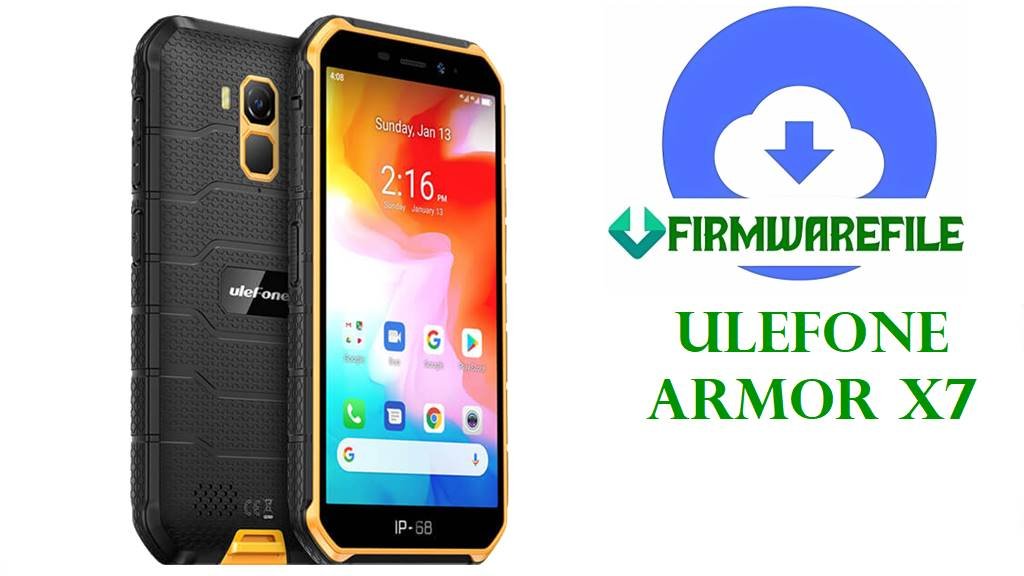
Fix Ulefone Armor X7 Bootloop & Software Failures with Official Stock Firmware
The Ulefone Armor X7 is a compact rugged smartphone engineered for durability, featuring the MediaTek MT6761 (Helio A20) chipset, a 5.0-inch HD display, and IP68/IP69K water and dust resistance. Despite its tough exterior, the device is susceptible to internal software issues common to Android 10 systems. Users frequently report problems such as the device getting stuck on the Ulefone logo (bootloop), “System UI has stopped” errors, touchscreen unresponsiveness, or a completely dead screen after a failed root attempt or improper update.
The stock firmware files provided below are the ultimate solution for these software defects. By flashing the official factory image, you can restore your Ulefone Armor X7 to its original state, repairing corrupted system partitions, fixing boot failures, and resolving network connectivity glitches. These files are essential for unbricking your device when standard factory resets via recovery mode fail to work.
⚠️ CRITICAL WARNING: Verify Your Region (EEA vs. Global)
The Ulefone Armor X7 comes in EEA (European Economic Area) and Non-EEA (Global) variants. Flashing the wrong version can lead to signal loss, invalid IMEI, or “Red State” boot errors.
Safety First: Always use the “Download Only” mode in SP Flash Tool first. NEVER use “Format All + Download” unless you have a backup of your NVRAM/IMEI data, as this will permanently delete your IMEI numbers and break your SIM card functionality. Ensure your battery is charged above 50% before starting.
Ulefone Armor X7 Firmware Details
| Device Name | Ulefone Armor X7 |
|---|---|
| Model Identifiers | Armor X7 (MT6761 / Helio A20) |
| Chipset | MediaTek MT6761 (Helio A20), Quad-core Cortex-A53 |
| Android Version | Android 10 |
| Board ID | full_k61v1_32_bsp_hdp |
| Battery | 4000 mAh, Li-Po (Non-removable) |
| Main Issues Reported | Stuck on Ulefone logo, restart loops, “dm-verity corruption” after rooting, touchscreen ghost touches, Bluetooth pairing failures, app crashes on launch. |
| Flash Tool | SmartPhone Flash Tool (SP Flash Tool) |
| Use Cases for Files Below | Unbrick dead devices, fix bootloops, remove root access, restore warranty status, upgrade/downgrade Android build, fix “System UI not responding”. |
Download Official Firmware for Ulefone Armor X7
| Filename | Region | Version | Build Date | Size | Special Notes | Download |
|---|---|---|---|---|---|---|
| R2-Ulefone-Armor_X7_V03_20220222 – P2NQS62EE7…V3.03.zip | Global / R2 | V03 (Rev 2) | 2022-02-22 | 1.4GB | Latest Build. “R2” indicates a hardware/software revision. Recommended for non-EU devices or general unbricking. | Download V03 (Google Drive) |
| Ulefone-Armor_X7_EEA_V04_20220119 – P2NQS62EE7…EEA…V3.03.zip | EEA (Europe) | V04 | 2022-01-19 | 1.4GB | Latest EEA Build. Specific for European Union countries. Adheres to EU privacy/radio standards. | Download V04 EEA (Google Drive) |
| Ulefone_Armor_X7_MT6761_V02_EEA_20201117.zip | EEA (Europe) | V02 | 2020-11-17 | 1.4GB | Older EEA build. Use only if the newer V04 causes stability issues or for downgrading. | Download V02 EEA (Google Drive) |
Note on Versions: Always attempt to flash the version that matches your region (EEA for Europe, Global for others). If you are unsure, check the sticker on the box or the back of the phone. The “R2” V03 build is the most recent file by date (Feb 2022) and is likely the most stable for general global units.
Before You Begin ⚙️
- 💾 Backup Data: Flashing will erase the internal storage. If your phone is bootlooping, data recovery may not be possible, but if it boots, back up everything now.
- 🔋 Check Battery: Ensure the phone has at least 50% charge. If the phone dies during flashing, it can hard brick.
- 💻 Install Drivers: You need MediaTek (MTK) VCOM Drivers installed on your Windows PC for the tool to detect the phone.
- 🛠️ Download Tools: Download the latest version of SP Flash Tool.
How to Flash Ulefone Armor X7 Firmware
The Ulefone Armor X7 is powered by a MediaTek chipset, which means it uses the industry-standard SP Flash Tool. This method is powerful and can recover devices even if the screen is black.
Method 1: SP Flash Tool (Official Method)
- Prepare the Files: Extract the downloaded firmware ZIP file and the SP Flash Tool ZIP file.
- Launch the Tool: Open the SP Flash Tool folder and right-click de>flash_tool.exe, then select “Run as Administrator”.
- Load the Scatter File: Click the “Scatter-loading” button. Navigate to the extracted firmware folder and select the text file named de>MT6761_Android_scatter.txt.
- Configure Flashing: Ensure the drop-down menu says “Download Only”.
- Start: Click the green “Download” button at the top of the tool.
- Connect the Phone: Turn your Ulefone Armor X7 completely OFF. Press and hold the Volume Down button (boot key) and connect the USB cable to the PC.
- Wait for Success: The tool should detect the phone and a red bar followed by a yellow bar will progress at the bottom. Once finished, a Green Checkmark window will pop up. You can now unplug and restart the phone.
For a detailed walkthrough with screenshots, driver links, and troubleshooting for error codes like “Status_BROM_CMD_FAIL”, please refer to our complete guide:
Full Tutorial: How to Flash Ulefone/MediaTek Firmware with SP Flash Tool
Frequently Asked Questions (FAQs)
Will flashing this firmware affect the IP68/IP69K water resistance?
No. Flashing firmware is purely a software operation and does not affect the physical hardware sealing of the device. However, if you physically opened the device for a test-point repair, the water resistance is compromised.
I flashed the firmware but my IMEI is gone (Invalid IMEI). What happened?
This happens if you selected “Format All + Download” in SP Flash Tool, which wipes the NVRAM partition containing your IMEI/Serial numbers. You will need to use a tool like Maui Meta or SN Write Tool to restore your original IMEI, which can be found on the phone’s box or the sticker on the back.
Can I flash the V04 EEA firmware on a Global device?
It is not recommended. EEA firmware is optimized for European network bands and GDPR regulations. Flashing it on a Global device may result in weak signal reception or missing 4G bands in your region. Stick to the Global/R2 version (V03) unless you are in Europe.
My phone connects to the PC but disconnects immediately. How do I fix this?
This is a driver issue. Make sure you have installed the MediaTek VCOM Preloader Drivers correctly. Try using a different USB port (preferably a USB 2.0 port) or a different high-quality data cable. Also, ensure you are holding the Volume Down button while connecting to force the handshake.
