Fix Xiaomi Pad 7S Pro 12.5 Bootloop, Dead Screen & Software Issues with Official Firmware
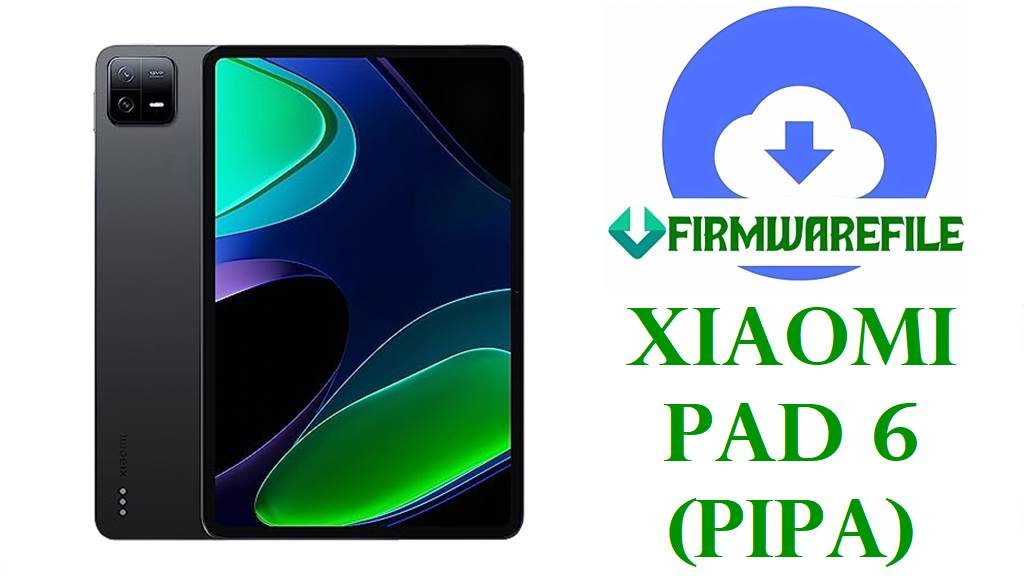
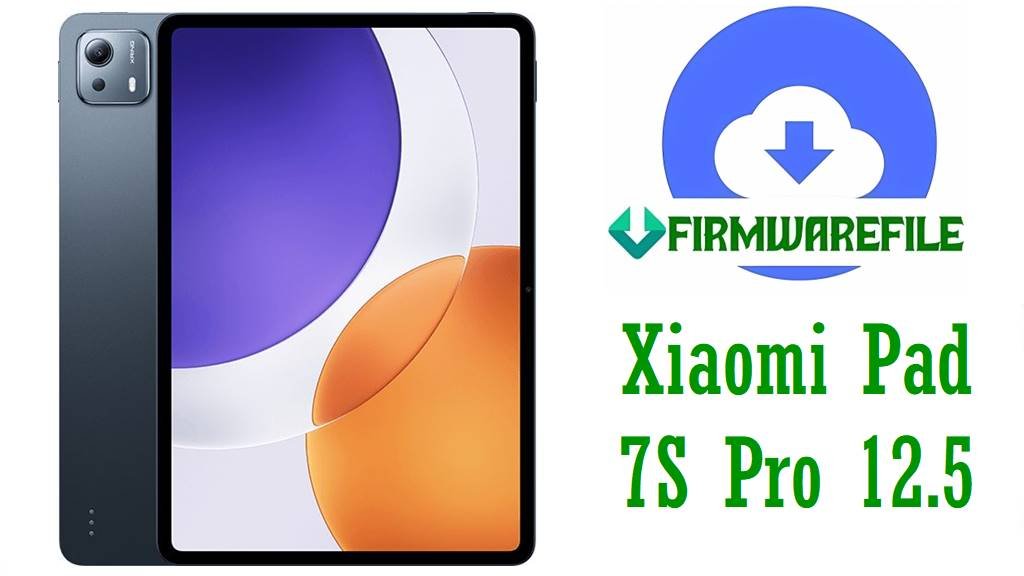
The Xiaomi Pad 7S Pro 12.5 is Xiaomi’s flagship tablet launched in 2024, featuring a massive 12.5-inch 2.5K OLED display with 144Hz refresh rate, MediaTek Kompanio 1300T processor, premium IP68 water/dust resistance, quad-speaker setup, and up to 12GB RAM with 512GB storage. The device ships with HyperOS 2.0 based on Android 15, offering seamless integration with Xiaomi ecosystem, advanced AI features, and enhanced multitasking capabilities. Despite its high-end specifications, users have reported critical software issues including bootloops with continuous restarts on the Xiaomi logo, dead screen conditions requiring forced recovery, HyperOS update failures causing system corruption, app force-closes and system crashes, unexpected reboots mid-use, and complete system freezes.
The official firmware package below (OS2.0.215.0.VOTCNXM – China region) is your definitive solution for these software failures. This verified factory HyperOS 2.0.215.0 image repairs corrupted system partitions, resolves update conflicts, fixes bootloader issues, and completely restores your tablet to its original state. This file supports both fastboot flashing (safest) and recovery mode flashing, making it essential for unbricking devices when standard recovery attempts fail.
🔴 CRITICAL WARNING: China ROM ≠ Global ROM
This firmware file OS2.0.215.0.VOTCNXM is the China regional variant (indicated by the “CNX” suffix). It is optimized for Chinese networks, uses the Chinese app ecosystem (Mi App Store, no Google Play), includes Chinese language by default, and contains Xiaomi’s proprietary services configured for China. If you have a Global/International Pad 7S Pro 12.5, flashing this China firmware will cause significant issues: broken Google Play Services, missing international language packs, incompatible network settings, and disabled international features. Only use this firmware if your tablet is the China regional variant. For Global/EU/International variants, download the corresponding regional firmware. Additionally, this process permanently erases all personal data—photos, documents, apps, and settings will be completely wiped. Ensure your tablet battery is charged above 60% at minimum—power loss during flashing causes irreversible hardware corruption and permanent device bricking.
Xiaomi Pad 7S Pro 12.5 Firmware Details
| Device Name | Xiaomi Pad 7S Pro 12.5 (Codename: violin) |
|---|---|
| Operating System | HyperOS 2.0 (based on Android 15), upgradeable to future Android 16+ versions |
| Processor | MediaTek Kompanio 1300T (octa-core, up to 3.25 GHz), AnTuTu benchmark ~900K+ |
| Display | 12.5-inch 2.5K OLED (2560 × 1600 pixels), 144Hz refresh rate, 10-bit color, HDR10+ support, Gorilla Glass protection |
| Storage & Memory | 128GB / 256GB / 512GB internal (UFS 4.0), 8GB / 12GB LPDDR5X RAM variants |
| Battery | 10100 mAh non-removable Li-Po battery, 33W wired fast charging, ~13 hour battery life |
| Connectivity | Wi-Fi 7 (802.11be), 5G NR (sub-6 and mmWave on compatible variants), Bluetooth 5.4, NFC (select models), GPS/GNSS |
| Cameras | Rear: Dual camera system (13MP main sensor), Front: 20MP for video calls and content creation |
| IP Rating | IP68 (water and dust resistant up to 50 meters for 10 minutes) |
| Firmware Version | OS2.0.215.0.VOTCNXM (Latest HyperOS 2.0, Android 15.0, China region build) |
| Main Issues Reported | Persistent bootloop with continuous logo restarts, dead screen requiring forced recovery, HyperOS update failures causing system corruption, app force-closes and system crashes, unexpected random reboots during use, complete system freezes lasting 30+ seconds, battery drain issues after updates, Wi-Fi/5G connectivity problems, touchscreen responsiveness glitches |
| Flash Methods Supported | Fastboot flashing (safest for bootloop recovery), Recovery mode flashing (if device boots into recovery), ADB sideload method, Mi Flash tool |
| Use Cases for Files | Recover from hard bootloops, fix dead screen conditions, repair system after failed updates, resolve system corruption from root/custom ROM attempts, downgrade to stable firmware if newer builds cause problems, completely reset tablet to factory settings, fix network connectivity issues, restore device functionality after malware or accidental system file deletion |
Download Official Firmware for Xiaomi Pad 7S Pro 12.5
| Filename | Device | Region | HyperOS | Android | Build Code | Size | Flash Method | Special Notes | Download |
|---|---|---|---|---|---|---|---|---|---|
| violin-images-OS2.0.215.0.VOTCNXM-user-20250917.0000.00-15.0-cn-67e164372d.tgz | Xiaomi Pad 7S Pro 12.5 | China (CNX) | HyperOS 2.0.215.0 | Android 15.0 | VOTCNXM | 8.89GB | Fastboot / Mi Flash Tool | LATEST China regional build (September 17, 2025). Recommended for Chinese Pad 7S Pro 12.5 users. Includes latest security patches, performance optimizations, and HyperOS 2.0 improvements. ⚠️ CHINA REGION ONLY – No Google Play Services, Chinese app ecosystem. | Download (Xiaomi Server) |
Regional Availability Note: This file is the China regional variant (VOTCNXM). If you purchased your Xiaomi Pad 7S Pro 12.5 in a non-Chinese region (Europe, India, Southeast Asia, Americas), you should download the corresponding Global/EU/Regional firmware instead. Flashing China firmware on a Global device causes system incompatibility, broken Google Play, and missing international features. Always verify your tablet’s region in Settings → About Tablet → Build Number before flashing. Global variants typically have build codes ending in “VOEUXM” (EU), “VOGINXM” (India), or similar non-CNX suffixes.
Before You Begin ⚙️
- 💾 Backup All Data: Flashing will permanently erase all files on your tablet, including documents, photos, videos, apps, and personal data. Use cloud backup (Mi Cloud, Google Drive, OneDrive) or USB transfer to backup critical files before proceeding.
- 🔋 Charge Battery to 60%+: Ensure your Xiaomi Pad 7S Pro 12.5 battery is charged to at least 60% or higher. Battery depletion during flashing causes permanent motherboard corruption and irreversible hardware damage.
- 💻 Use Windows PC: Connect via a Windows 10 or 11 computer with stable USB 3.0+ connectivity. Avoid USB hubs—use direct USB-C ports on the computer for reliable data transfer during flashing.
- 🔌 Quality USB-C Cable: Use the original Xiaomi USB-C cable or a certified high-quality replacement. Defective cables interrupt flashing mid-process, causing instant device bricking.
- 🧩 Install USB Drivers: Install Xiaomi/MediaTek USB drivers on your PC to enable proper device detection and communication. Without drivers, your PC won’t recognize the tablet.
- 📥 Download Required Tools: Download Mi Flash Tool (official Xiaomi flashing software) or use ADB/Fastboot command-line tools. These are essential for flashing the firmware package.
- ⚡ Disable Security Software: Temporarily disable Windows Defender, antivirus software, and firewall to prevent them from blocking or interfering with flashing tools and processes.
- 📱 Verify Region: Check Settings → About Tablet → Build Number to confirm your tablet is the China regional variant (VOTCNXM build code) before flashing this firmware.
📱 How to Flash Xiaomi Pad 7S Pro 12.5 Firmware
Method 1: Mi Flash Tool (Official & Easiest Method)
Mi Flash Tool is Xiaomi’s official graphical flashing application. This is the safest and most user-friendly method for flashing Xiaomi devices.
- Extract Firmware: Download the OS2.0.215.0.VOTCNXM firmware file (.tgz format). Extract it using WinRAR, 7-Zip, or Windows built-in extraction to obtain the extracted firmware folder containing system images.
- Install Mi Flash Tool: Download and install Mi Flash Tool from Xiaomi’s official website on your Windows PC. Install MediaTek/Xiaomi USB drivers for proper device detection.
- Boot into Fastboot Mode: Power off your Xiaomi Pad 7S Pro 12.5 completely. Hold Volume Down + Power simultaneously for 10 seconds until the Fastboot mode screen appears (showing fastboot text and device info).
- Connect USB Cable: Connect your tablet to the PC via USB-C cable while in Fastboot mode. The tablet should display “Connecting…” or “Connected” message.
- Open Mi Flash Tool: Launch Mi Flash Tool on your PC. It will automatically detect your connected tablet in Fastboot mode and display device information.
- Select Firmware: Click the “Select firmware” button and navigate to the extracted firmware folder (containing scatter file or ROM images). Mi Flash Tool will parse and display the firmware version information.
- Start Flashing: Click the “Flash” button to begin the flashing process. A progress bar will display completion percentage. DO NOT disconnect USB or power off the tablet during this time. Flashing typically takes 5–15 minutes depending on file size and USB speed.
For detailed Mi Flash Tool guide with screenshots:
Full Tutorial: How to Use Xiaomi Mi Flash Tool for Flashing
Method 2: Fastboot Command Line (Advanced Recovery)
For experienced users or when bootloader is inaccessible via normal Fastboot mode, fastboot commands via command-line offer manual control.
- Extract Firmware: Extract the OS2.0.215.0.VOTCNXM firmware file to obtain system images (boot.img, system.img, vbmeta.img, etc.).
- Setup ADB/Fastboot: Download Android SDK Platform Tools (contains adb and fastboot executables). Extract to a folder on your desktop.
- Boot Fastboot Mode: Power off tablet. Hold Volume Down + Power for 10 seconds to enter Fastboot mode.
- Connect & Verify: Connect tablet via USB-C. Open Command Prompt in the fastboot folder and type: de>fastboot devices. Your tablet model should appear, confirming connection.
- Flash Partitions: Execute fastboot commands sequentially for each partition:
- de>fastboot flash bootloader bootloader.img
- de>fastboot flash boot boot.img
- de>fastboot flash system system.img
- de>fastboot -w (wipes cache)
- Reboot: Type de>fastboot reboot to restart the tablet into the new HyperOS 2.0 system.
For comprehensive fastboot guide:
Full Tutorial: How to Use Fastboot to Flash ROM
Frequently Asked Questions (FAQs)
I have a Global Xiaomi Pad 7S Pro 12.5. Should I use this China firmware?
No. This firmware is VOTCNXM (China regional variant only). If you have a Global/EU/International Pad 7S Pro 12.5, flashing this China firmware will cause serious problems: broken Google Play Services, missing international languages, incompatible network settings, and disabled international features. Only use this firmware if your device build number is VOTCNXM. For other regions, download the corresponding firmware (Global typically uses VOEUXM, VOGINXM, or similar regional codes).
How do I know if my Pad 7S Pro 12.5 is the China variant?
Go to Settings → About Tablet → Build Number. Look for the build code: if it shows VOTCNXM, you have the China regional variant and can use this firmware. If it shows VOEUXM, VOGINXM, VONIXM, or other non-CNX codes, you have a different regional variant. Only use firmware matching your exact regional build code.
Why is this firmware 8.89GB so large?
The large file size is due to the comprehensive HyperOS 2.0.215.0 system image, which includes: full system framework, all preinstalled apps, multiple language packs, security patches (September 2025), system libraries, media codecs, and device-specific optimizations for the 12.5-inch display, MediaTek Kompanio 1300T processor, and quad-speaker system.
My tablet is bootlooping on the Xiaomi logo. Will this firmware fix it?
Yes. Flashing this official HyperOS 2.0.215.0 firmware repairs corrupted system partitions that cause bootloops. Use the Fastboot method (Method 1: Mi Flash Tool) as it’s most reliable for recovering from bootloop conditions. Ensure your tablet is in Fastboot mode before connecting to PC.
After flashing, my tablet asks for Mi Account login. Is this normal?
Yes, this is normal after factory reset. HyperOS requires you to sign in with your original Mi Account or create a new one to access Xiaomi services, cloud features, and app ecosystem. If you forgot your account credentials, reset them via the Mi Account website on your computer.
Can I downgrade to an older HyperOS version after flashing this?
Generally, downgrading HyperOS versions is not recommended due to bootloader restrictions and security considerations. However, Xiaomi occasionally releases older firmware versions for compatibility. If this HyperOS 2.0.215.0 build causes problems, contact Xiaomi support or check official Xiaomi firmware repositories for alternative HyperOS 2.0.x builds for your region.
Flashing failed with an error. What should I do?
Common causes: (1) USB driver not installed, (2) Faulty USB cable or port, (3) Low battery (below 60%), (4) Incorrect firmware for your regional variant, (5) Antivirus/firewall blocking flashing tool. Try: (a) Reinstall USB drivers, (b) Use different USB port/cable, (c) Charge tablet above 60%, (d) Verify you have VOTCNXM build code, (e) Disable antivirus, (f) Retry flashing process.
Is this firmware safe and from an official Xiaomi source?
Yes. This firmware file (OS2.0.215.0.VOTCNXM) is downloaded directly from Xiaomi’s official OTA server (bigota.d.miui.com), the same source Xiaomi uses for automatic system updates. It is verified by Xiaomi’s digital signature and is completely safe to flash on compatible Xiaomi Pad 7S Pro 12.5 devices with matching regional variant codes.