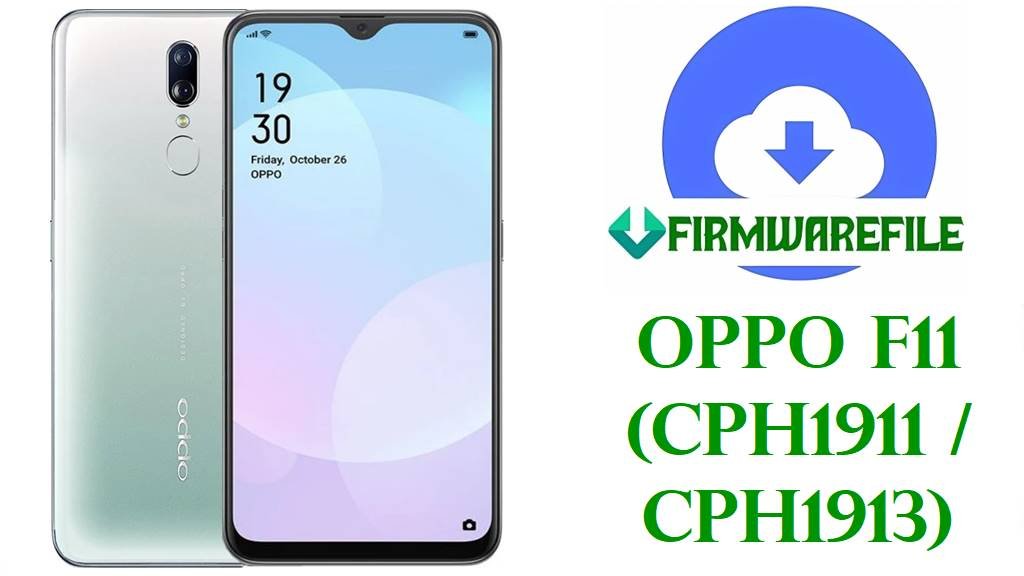
OPPO F11 (CPH1911 / CPH1913) Official Stock ROM & Flashing Guide
The Oppo F11 with model numbers CPH1911 and CPH1913 is a 2019 mid‑range smartphone built around a MediaTek Helio P70 processor, a 6.5‑inch FHD+ LCD, and a 48 MP main camera with a 4020 mAh battery.
Users usually reinstall the stock firmware on this device to remove forgotten screen locks, fix hang‑on‑logo or bootloop situations, resolve severe software bugs after updates, undo unwanted modifications, or perform a clean setup before sale or hand‑over.
File Selection Guide
The packages listed below belong to the Oppo F11 family and are marked with build branches A (Android 9 ColorOS 6.x) and F (later ColorOS builds, still Android 9 on this model), with the model tag CPH1911 or CPH1913 and EX suffix for export variants.
As a simple rule: match the model code (CPH1911 vs CPH1913), then choose an F‑branch build (F.04, F.09, F.19) if your phone is already on the F series or you want newer security patches; use an A‑branch build (A.35, A.37, A.43) only when you specifically need an older ColorOS version or when an F build will not boot.
First‑time users should generally start with a tested, newer F‑series firmware like CPH1911_11_F.19 for full system repair, and reserve older A‑series packages for downgrade scenarios or when following a specific service procedure that calls for them.
Oppo F11 CPH1911 / CPH1913 Firmware Download
The table below groups the available files by branch and purpose; most of these are service‑style flash packages intended for use with a compatible Oppo flashing tool (MSM/Download Tool) or SP Flash‑type scatter firmware when provided in that format.
| Model | Build | Android / UI | Approx. Release | Size | File Format | Notes | Flashing Method | Download |
|---|---|---|---|---|---|---|---|---|
| CPH1911EX | A.35 (CPH1911EX_11_A.35_190708_9b7c972f) | Android 9, early ColorOS 6 | 2019‑07‑08 | 5.50–5.62 GB | .rar /.zip archive | Early export firmware; useful for reverting to an initial stable build or unbricking units originally shipped with early A‑branch software. | Oppo MSM Download Tool / authorized service tool | Download A.35 (AFH) Download A.35 (Drive) |
| CPH1911EX | A.43 (CPH1911EX_11_A.43_200325_36b466ea) | Android 9, later ColorOS 6 | 2020‑03‑25 | 5.86–5.88 GB | .zip archive | Later A‑series build with more bug fixes and improvements; typically chosen when the phone is still on A‑branch and needs a refresh without jumping to F branch. | Oppo MSM Download Tool / authorized service tool | Download A.43 (MediaFire) |
| CPH1911 | A.37 (CPH1911_11_A.37_190924_36b466ea) | Android 9, ColorOS 6 | 2019‑09‑24 | 5.22 GB | .rar /.zip archive | Intermediate A‑series firmware for non‑EX units; can be used to restore mid‑cycle software on devices that shipped with regional CPH1911 builds. | Oppo MSM Download Tool / authorized service tool | Download A.37 (MediaFire) |
| CPH1911 | F.04 (CPH1911_11_F.04_202012282322) | Android 9, newer ColorOS 6.x F branch | 2020‑12‑28 | 3.88 GB | .zip archive (7z source noted) | Early F‑series firmware bringing newer security and bug fixes; good baseline for moving a troubled A‑branch device to F branch under guidance. | Oppo MSM Download Tool / authorized service tool | Download F.04 (MediaFire) |
| CPH1911 | F.09 (CPH1911_11_F.09_2021042219080774) | Android 9, ColorOS 6.x F branch | 2021‑04‑22 | 3.07 GB | .7z archive (converted.zip link) | Mid F‑branch build; balances stability and size, often selected to address performance issues and minor bugs without going to the very last firmware. | Oppo MSM Download Tool / authorized service tool | Download F.09 (MediaFire) |
| CPH1911 | F.19 (CPH1911_11_F.19_2022021320390949) | Android 9, latest ColorOS 6.x F branch | 2022‑02‑13 | 3.81 GB | .zip archive | Newer F‑series firmware widely used to unbrick Oppo F11 CPH1911, remove locks, and fix hang‑on‑logo; usually recommended as a final stable build. | Oppo MSM Download Tool / authorized service tool | Download F.19 (MediaFire) |
| CPH1913EX | A.35 (CPH1913EX_11_A.35_190708_9b7c972f) | Android 9, ColorOS 6 | 2019‑07‑08 | 5.62 GB | .rar archive | Firmware for the sibling CPH1913 variant; only use on matching CPH1913EX units, not on CPH1911, to avoid modem or region conflicts. | Oppo MSM Download Tool / authorized service tool | Download CPH1913EX A.35 (Drive) |
Oppo F11 (CPH1911 / CPH1913) and Firmware Summary
This summary highlights the key hardware traits of the Oppo F11 and how they align with the firmware packages above so you can verify compatibility before flashing.
| Parameter | Details |
|---|---|
| Device name | Oppo F11 |
| Model codes | CPH1911, CPH1911EX, CPH1913, CPH1913EX |
| Chipset | MediaTek Helio P70 MT6771T octa‑core with Mali‑G72 MP3 GPU. |
| Display | 6.5‑inch LTPS/IPS LCD, 1080 × 2340 resolution, waterdrop‑style notch. |
| Memory options | Typically 4–6 GB RAM with 64–128 GB storage, plus microSD expansion. |
| Battery | 4020 mAh Li‑Po battery with VOOC fast charging around 20 W. |
| Main camera | 48 MP rear camera with depth sensor, 1080p video up to 30 fps, HDR and night features. |
| Software base | Android 9.0 Pie with ColorOS 6.x; A‑ and F‑branch firmware are Android 9‑based service files. |
| Firmware families above | A‑series (A.35 / A.37 / A.43) and F‑series (F.04 / F.09 / F.19) for CPH1911; A.35 for CPH1913EX. |
| Typical flashing tools | Oppo MSM Download Tool or other authorized download tool, sometimes scatter‑based SP Flash Tool when proper MTK scatter files are provided. |
| Boot mode | EDL/test‑point or download mode for deep unbrick; standard fastboot/ADB for verification and some recovery tasks. |
How to Flash Oppo F11 CPH1911 / CPH1913 Firmware
Oppo F11 service firmware is usually flashed with an MSM‑type Download Tool in EDL or download mode, not with generic user‑level tools; work patiently, and only use firmware that matches your exact model code.
Method 1 – MSM Download / Oppo Service Tool (Typical for CPH1911)
This method is commonly used in repair environments to unbrick Oppo F11 units that no longer boot or are stuck on the logo.
- Install the necessary Oppo USB and MediaTek drivers on your Windows PC, then extract the chosen CPH1911 or CPH1911EX firmware (for example F.19) into a clean folder.
- Open the MSM/Download Tool build that matches the firmware and load the configuration or CPH1911 package file as required by that version of the tool.
- Power off the Oppo F11 and put it into download/EDL mode, which often requires a button combo plus USB or a test‑point procedure on the mainboard in hard‑brick cases.
- Connect the phone to the PC and confirm that the tool shows it as connected on a COM/USB port, then click the Start or Download button to begin flashing.
- Wait until the progress bar reaches 100% and the tool reports success, then disconnect the cable and power on the phone; the first boot into ColorOS may take several minutes.
For a general reference on vendor flashing utilities workflow, you can also review concepts similar to those in MSM‑style tools described here:
MSM Download Tool flashing overview.
Method 2 – SP Flash Tool / Scatter Firmware (If You Have MTK Scatter Packages)
Some Oppo F11 packages from firmware sites also provide MediaTek scatter files, which can be used with SP Flash Tool; do this only if your archive clearly contains a valid MT6771 scatter definition.
- Install MediaTek VCOM/USB drivers on your PC and extract the scatter‑based firmware for CPH1911 into its own directory.
- Open SP Flash Tool, load the MT6771 scatter file from the firmware folder, and verify that key partitions such as preloader, boot, system, and vendor are correctly mapped for Oppo F11.
- Choose an appropriate flashing mode (usually Download Only for repair, avoiding preloader unless necessary and you are sure it matches CPH1911).
- With the phone powered off, click Download in SP Flash Tool, then connect the device via USB and wait for the progress bar to complete.
- When SP Flash reports success, unplug the cable and boot the phone, allowing extra time on the first startup after a full system write.
A step‑by‑step MTK flashing explanation with scatter files can be studied here:
How to flash MediaTek firmware using SP Flash Tool.
Method 3 – Local OTA / Recovery Update (When the Phone Still Boots)
If your Oppo F11 still boots into ColorOS and you only need to apply an incremental update, a recovery/OTA package may be safer than a full service flash when available.
- Back up important data, charge the phone above 50%, then check Settings > Software update for any official OTA offered for your CPH1911 region.
- If a local update function exists and you have a matching update package from Oppo, copy it to internal storage and select it from the local update menu.
- Confirm the installation and leave the device untouched while it verifies and installs the update, then reboots automatically.
- After boot, verify the new build number (for example A.43 or F.19) in Settings > About phone to confirm success.
For broader concepts on updating Android firmware without a PC or using local packages, see:
Android firmware installation without PC (OTA / local update / sideload).
Frequently Asked Questions
How do I confirm that my Oppo F11 is CPH1911 or CPH1913 before flashing?
In Settings > About phone you can read the model number, and from a PC you can also run adb shell getprop ro.product.model or check the device info sticker; the firmware here is only safe for Oppo F11 variants with CPH1911/CPH1913 codes.
Which branch should I choose: A‑series or F‑series firmware?
If your current build is already in the F branch, it is usually best to pick a newer F version such as F.09 or F.19; A‑series (A.35 / A.37 / A.43) is mainly used for downgrade steps or when you must match a specific early build requested by a repair guide.
Can these firmware packages remove screen lock or FRP on Oppo F11?
Service‑style firmware like CPH1911_11_F.19 is often used by technicians to remove locks and fix hang‑on‑logo, but success and legality depend on the tool, region, and account status, and you must only service devices you own or are authorized to repair.
Will flashing these files wipe my data?
Full flashes via MSM/Download Tool or SP Flash Tool typically erase user data and may overwrite all partitions, so you should assume a complete wipe and back up anything important before proceeding whenever the phone still boots.
Is it safe to use CPH1913EX firmware on a CPH1911 device?
Cross‑flashing between CPH1911 and CPH1913 is not recommended because of regional and modem differences; always stick to firmware built for your exact model code to avoid network and stability issues.
What should I do if the MSM/Download Tool does not detect my F11?
Check the USB cable and port, reinstall Oppo/MTK drivers, try another PC, and in hard‑brick situations you may need to trigger test‑point/EDL mode on the motherboard so that the phone enumerates as a Qualcomm/MediaTek emergency device to the tool.