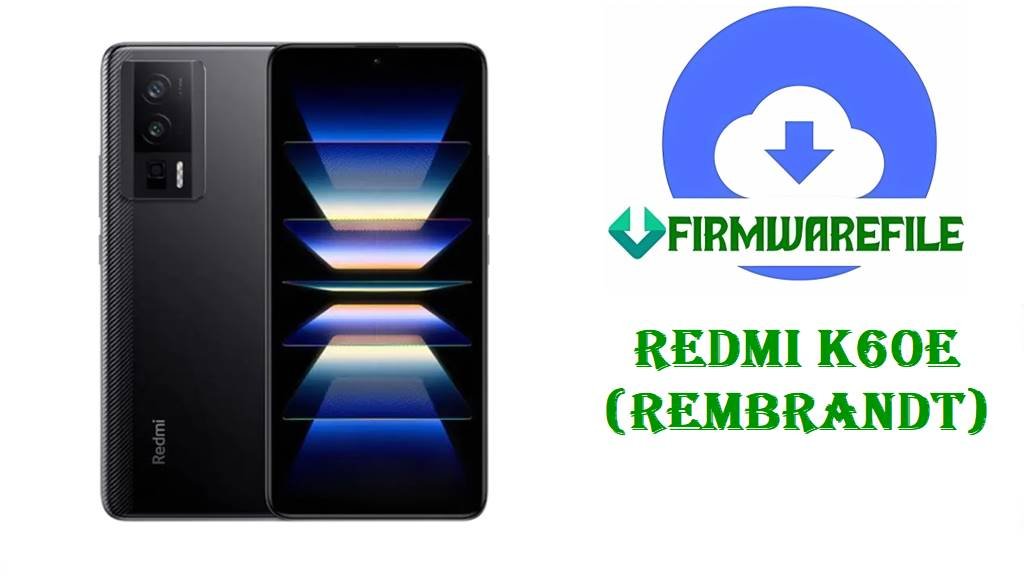
Redmi K60E (rembrandt) HyperOS 2 Fastboot ROM (China) – OS2.0.19.0.UMMCNXM
The Redmi K60E is a mid-range flagship positioned around the Redmi K60 series, powered by a MediaTek Dimensity 8200 chipset with a 6.67-inch OLED display at 2K resolution and 120Hz refresh rate. Launched in December 2022, this device serves the competitive Chinese smartphone market and is rebranded internationally as the Xiaomi 12T in some regions. The Redmi K60E combines performance, a 5500mAh battery with 67W fast charging, and a premium display at an accessible price point.
Common issues reported on this device include bootloop conditions following failed OTA updates, occasional lag during intensive multitasking, and intermittent recovery mode failures after attempting system resets. The firmware version documented here—HyperOS 2 OS2.0.19.0.UMMCNXM—is a stable Fastboot ROM intended for clean system reinstallation, recovery from bootloop states, or downgrading from newer builds. This Fastboot package provides a complete system image suitable for users requiring a factory-level restoration or those recovering from corrupted system partitions.
File Selection Guide
Device Compatibility: The rembrandt_images_OS2.0.19.0.UMMCNXM_20251028.0000.00_14.0_cn_7186b03d8d.tgz file is exclusively designed for the Redmi K60E with model number 22122RK93C and codename “rembrandt.” This is a China-region (CN) firmware release.
Region Specificity: This build is designated for China-market devices. It will not automatically update devices from other regions (Global, India, EU variants). Flashing a regional firmware mismatch may result in locale-specific issues, missing language packs, or incompatible system apps.
Android and HyperOS Base: The firmware runs Android 14 with HyperOS 2 (OS2.0.19.0). Devices currently on MIUI 13 or earlier versions will perform a major system upgrade. Expect interface changes, new app behavior, and potential third-party app compatibility shifts.
Typical Use Cases: This Fastboot ROM is appropriate for recovering from bootloop conditions where the device cannot reach the lock screen or recovery menu, performing a complete data wipe and system reinstall, or returning to a stable HyperOS baseline before installing beta or newer updates. It is not suitable for sideloading incremental OTA updates; use recovery or online update methods for those scenarios.
Download Official Firmware for Redmi K60E
China HyperOS 2 Fastboot ROM – OS2.0.19.0.UMMCNXM (Android 14)
- Filename: rembrandt_images_OS2.0.19.0.UMMCNXM_20251028.0000.00_14.0_cn_7186b03d8d.tgz
- Region: China
- File Size: 6.76 GB
- Build Date: 2025-10-28
- Build Version: OS2.0.19.0.UMMCNXM
- Android Version: 14.0
- Flashing Type: Fastboot ROM (.tgz format)
- What this update can verifiably improve: Official changelogs for OS2.0.19.0.UMMCNXM indicate integration of the November 2025 Android security patch and increased system security hardening measures. No major feature additions are documented for this build; focus remains on stability and security posture.
- Download Link: Download Redmi K60E HyperOS 2 Fastboot ROM from Xiaomi OTA
Redmi K60E Device and Firmware Details
| Device Name | Redmi K60E (2022) |
| Model Numbers | 22122RK93C (China) |
| Codename | rembrandt |
| Chipset | MediaTek Dimensity 8200 (4nm), Octa-core CPU (1×3.1 GHz A78 + 3×3.0 GHz A78 + 4×2.0 GHz A55), Mali-G610 MC6 GPU |
| Display | 6.67-inch OLED, 1440×3200 resolution (2K), 120Hz refresh rate, 526 ppi, Dolby Vision, HDR10+, 1200 nits peak brightness, Gorilla Glass Victus |
| RAM | 8GB / 12GB LPDDR5 |
| Storage | 128GB / 256GB / 512GB UFS 3.1 (no microSD slot) |
| Battery | 5500 mAh Li-Po, 67W wired fast charging, USB Type-C 2.0 |
| Base Software (Original) | Android 12 with MIUI 13 |
| Firmware Version | OS2.0.19.0.UMMCNXM (HyperOS 2, Android 14) |
| File Type | Fastboot Tarball (.tgz) – Full system image archive |
| Flashing Tool Required | Xiaomi Mi Flash Tool (Windows) or command-line fastboot with extracted ROM |
| Bootloader Requirement | Device bootloader must be unlocked (unlocking erases all user data). Unlock process requires a Xiaomi account and 360 hours of wait time (automatic unlock on accounts older than 360 hours). |
| Common Issues Reported | Bootloop after failed OTA updates (especially when interrupted), occasional lag during heavy gaming or app switching, recovery mode not appearing after factory reset attempts, system hang during initial HyperOS 2 setup |
| Primary Use Cases for This ROM | Recovery from bootloop where only the charging LED or vibration responds; clean system reinstallation after removing third-party ROMs; returning to official Xiaomi firmware baseline; preparing device for resale |
| Network Support | 5G (Bands 1, 3, 5, 8, 28, 38, 41, 77, 78), 4G LTE, 3G, 2G; Wi-Fi 6E dual-band; Bluetooth 5.3; NFC; GPS / GLONASS / BDS / Galileo / QZSS |
Flashing Requirements
Data Loss Warning: Fastboot flashing erases all personal data, installed apps, photos, messages, and settings from the device. This is irreversible. Back up critical files to a cloud service or external storage before proceeding.
Battery Level: Device must have at least 60% battery charge before flashing begins. A power loss or unexpected shutdown during flashing can corrupt the firmware and render the device non-functional. Connecting the device to a stable power adapter during the entire flashing process is strongly recommended.
Operating System: Fastboot flashing requires a Windows PC (Windows 10 or later) or Linux machine with ADB (Android Debug Bridge) and Fastboot drivers installed. macOS users may experience driver issues; compatibility is not guaranteed.
Required Tools: Download Xiaomi Mi Flash Tool (Windows) or ensure a working fastboot environment with extracted ROM files. Install the latest ADB drivers for the Redmi K60E. The ROM must be extracted from the.tgz archive into a dedicated folder before use.
Bootloader Status: Bootloader must be unlocked before flashing. If the bootloader is locked, the device will reject fastboot commands. Unlocking requires a valid Xiaomi account and results in automatic device wipe. After unlocking, wait for confirmation before attempting to flash.
How to Flash the Firmware
High-Level Flashing Steps:
- Prepare: Extract the.tgz file to a folder on your Windows PC. Ensure Xiaomi Mi Flash Tool is installed and the latest ADB drivers are present. Back up all important data.
- Boot Fastboot: Power off the device completely. Hold the Power + Volume Down buttons for 5–10 seconds until the Fastboot logo appears with “FASTBOOT MODE” text.
- Connect to PC: Plug the device into the PC using a USB Type-C cable. Open Xiaomi Mi Flash Tool, navigate to the extracted ROM folder, and select the device from the detected list.
- Flash: Click “Flash All” in the tool. The flashing process will begin, showing progress for each partition. Do not disconnect the device or interrupt power—this typically takes 5–10 minutes.
- Complete and Reboot: Once flashing finishes successfully, the tool will display a confirmation message. The device will automatically reboot into the new HyperOS 2 system. Initial boot setup may take 2–3 minutes.
For detailed, step-by-step flashing instructions with screenshots and video support, consult the comprehensive guide linked below. This resource covers pre-flashing checks, driver installation, and troubleshooting:
- Complete Xiaomi Mi Flash Tool Guide with Screenshots – Covers full flashing workflow for Xiaomi devices using Fastboot ROM packages.
Frequently Asked Questions
What happens if flashing is interrupted by a power loss or USB disconnection?
If the connection drops during flashing, the firmware will be left in a corrupted state and the device will likely enter bootloop or display the Fastboot screen indefinitely. Recovery is possible using the same Fastboot ROM file by reconnecting and retrying the flash process, but attempting to boot normally will not work. This is why maintaining a stable power source and reliable USB connection throughout flashing is critical.
Can I flash this China HyperOS 2 firmware on a Global or EU variant of the Redmi K60E?
Technically, the firmware will flash and boot on devices with the rembrandt codename regardless of region; however, it is not recommended. The China build includes region-specific system apps, localization settings, and Chinese language defaults that may not include your local language or services. System stability may be affected. Always use firmware matching your device’s original region when possible.
Do I need to unlock the bootloader each time I flash, or just once?
Bootloader unlock is a one-time action. Once unlocked via your Xiaomi account, it remains unlocked for future flashing operations. You do not need to unlock again unless you specifically perform a bootloader re-lock through developer settings or fastboot commands.
Will flashing this ROM remove my Xiaomi account or Mi Cloud data?
Flashing erases all local data on the device, including any stored passwords or account credentials. However, data backed up to Xiaomi Cloud (photos, contacts, etc.) remains on Xiaomi’s servers and can be restored after setup completes. You will need to sign in with your Xiaomi account again post-flash to access cloud backups.
What is the difference between this Fastboot ROM and the Recovery (OTA) version of OS2.0.19.0?
Fastboot ROM is a complete, bare-metal system image used to entirely rewrite the device firmware. It requires bootloader unlocking and an attached PC with flashing software. Recovery ROM is an incremental update package designed for installation within the running system or recovery mode, and it preserves more user data during the update process. Choose Fastboot only if you need a full clean install or recovery from bootloop.
Is it safe to flash an older firmware version (downgrade) after updating to a newer HyperOS 2 build?
Downgrading is technically possible with Fastboot, but it is not officially supported by Xiaomi and may result in system instability or kernel-level conflicts. Additionally, security patches applied in newer versions are removed, reducing protection. Downgrading should only be considered as a last resort for addressing critical bugs or bootloop conditions that newer versions cannot resolve.
How long does the initial setup take after the phone reboots following a successful Fastboot flash?
Expect 2–5 minutes for the initial boot sequence. The system will compile optimizations, generate cache files, and prepare the new HyperOS 2 environment. Do not force a restart during this time, even if the screen appears static or the progress bar stalls momentarily. If the device does not reach the lock screen after 10 minutes, force a restart using the Power button and allow another attempt.