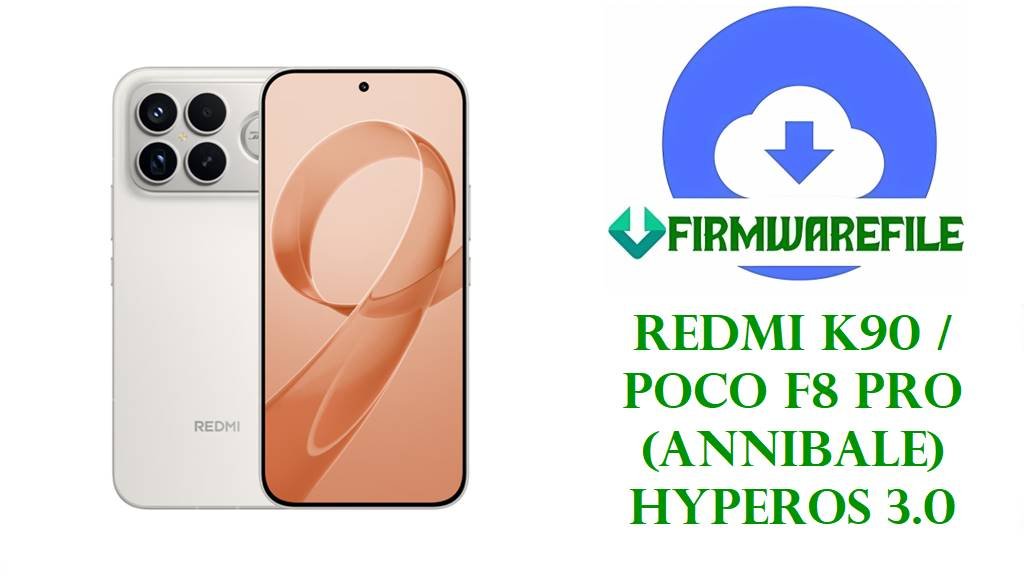
Redmi K90 / POCO F8 Pro (annibale) HyperOS 3.0 – Fix Bootloop & Screen Flickering
Is your Redmi K90 or POCO F8 Pro stuck on the boot logo after a failed HyperOS update? Experiencing screen flickering, system crashes, or bricked device issues? These flagship devices with Snapdragon 8 Elite chipset require precise firmware handling. This guide provides both the official China firmware and Xiaomi.eu custom ROM to restore your device to full functionality.
Flashing the correct firmware will help you:
- Fix bootloop and system crash issues caused by corrupted HyperOS updates
- Resolve screen flickering problems common after Android 16 transitions
- Recover from bricked or unresponsive states due to bootloader conflicts
- Upgrade to Xiaomi.eu ROM for global languages and Google services
- Return to factory stock software with proper Snapdragon 8 Elite optimization
This device uses the Qualcomm Snapdragon 8 Elite Gen 5 chipset with Android 16. You must use the latest platform-tools (ADB/Fastboot) from Android SDK. Older tools will fail with “command failed” errors. The Xiaomi.eu ROM requires an unlocked bootloader (168-hour wait period). Flashing wrong firmware will hard-brick your device. China ROM (first file) has no Google services.
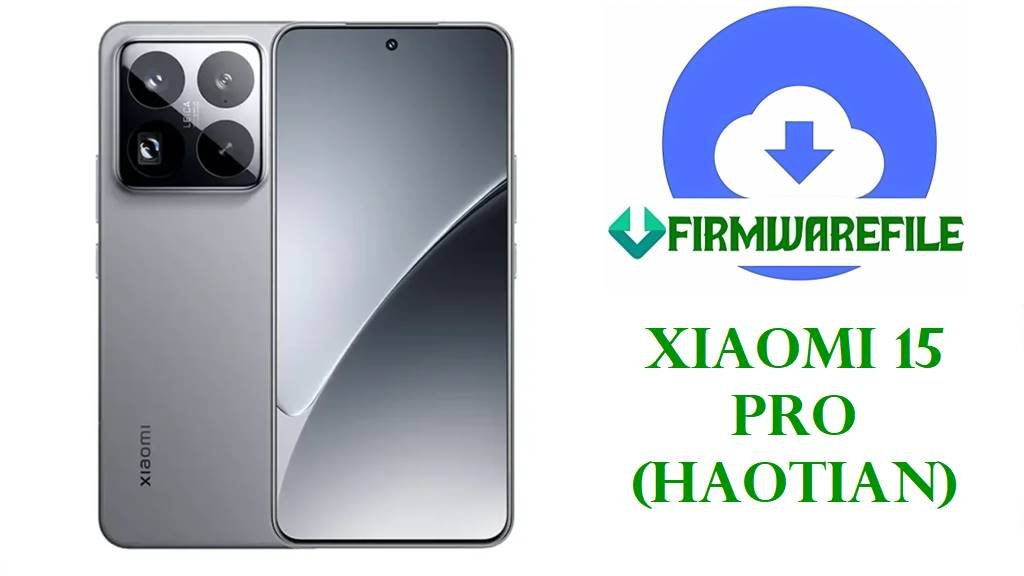
Redmi K90 / POCO F8 Pro (annibale) Firmware Details
| Detail | Information |
|---|---|
| Device Name | Redmi K90 / POCO F8 Pro |
| Codename | annibale |
| Model Numbers | 2510DRK44C (China), 2510DPC44G (Global) |
| Chipset | Qualcomm Snapdragon 8 Elite Gen 5 (SM8750) |
| Android Version | Android 16.0 |
| HyperOS Version | OS3.0.13.0.WPKCNXM |
| Build Date | 2025-11-07 |
| Files Provided | Official China Fastboot ROM + Xiaomi.eu Custom ROM |
| RAM Variants | 12GB/16GB (China), 12GB only (Global) |
| Storage Options | 256GB/512GB/1TB |
| Battery Capacity | 5800 mAh |
| Display | 6.67″ 2K LTPO OLED, 120Hz |
| Camera | 50MP main + ultrawide + telephoto |
Download Redmi K90 / POCO F8 Pro Firmware
| Filename | Type | Android | HyperOS | Size | Google Services | Download |
|---|---|---|---|---|---|---|
| annibale_images_OS3.0.13.0.WPKCNXM_20251107.0000.00_16.0_cn_2594d1c4ae.tgz | Official China Fastboot | 16.0 | OS3.0.13.0 | 10.66 GB | No | Official Link |
| xiaomi.eu_ANNIBALE_OS3.0.13.0.WPKCNXM_16.zip | Xiaomi.eu Custom ROM | 16.0 | OS3.0.13.0 | 7.83 GB | Yes | SourceForge |
File Comparison: The official China firmware is 2.83GB larger as it includes all system partitions and factory calibration data. The Xiaomi.eu ROM is debloated (no Chinese apps) and includes Google services but requires unlocked bootloader. For first-time flashing, use the official TGZ file. For upgrading from older HyperOS, the Xiaomi.eu ZIP is faster.
Before You Begin ⚙️
- 🔓 Bootloader Status: Xiaomi.eu ROM requires unlocked bootloader (168-hour wait). Official ROM can flash with locked bootloader.
- 💾 Backup Data: Both methods will erase all data. Use Mi Cloud or local backup.
- 🔋 Battery Charge: Minimum 60% charge required (5800 mAh battery takes longer to recover if flashing fails).
- 💻 PC Requirements: Windows 10/11 with USB 3.0 port recommended. Mac/Linux supported for Xiaomi.eu only.
- 🔧 Platform Tools: Download latest
platform-toolsfrom Android developer site (must be 35.0.0 or newer). - 🔌 USB Cable: Use original Xiaomi USB-C cable. Fastboot errors often caused by poor cables.
📱 Quick Flashing Guides
Method 1: Official China Firmware (Fastboot)
- Extract Files: Use 7-Zip to extract
annibale_images_OS3.0.13.0.WPKCNXM_20251107.0000.00_16.0_cn_2594d1c4ae.tgzto a folder on your PC. - Install Drivers: Run
setup.batin the extracted folder to install Snapdragon 8 Elite drivers. - Enter Fastboot: Power off device. Hold Volume Down + Power until Fastboot screen appears.
- Connect & Flash: Connect USB cable. Open command prompt in the firmware folder and run:
flash_all.bat - Complete: Wait for green “success” message. Device will reboot automatically (first boot takes 15-20 minutes).
Full Tutorial: How to Flash with Fastboot (Qualcomm Devices)
Method 2: Xiaomi.eu ROM (Fastboot)
- Unlock Bootloader: Complete 168-hour unlock process via Mi Unlock Tool.
- Extract ZIP: Extract
xiaomi.eu_ANNIBALE_OS3.0.13.0.WPKCNXM_16.zipto a folder on your PC. - Enter Fastboot: Power off device. Hold Volume Down + Power until Fastboot screen appears.
- Run Script: Double-click
windows_fastboot_first_install_with_data_format.bat(or Linux/Mac equivalent). - Reboot: After completion, device will reboot to Xiaomi.eu HyperOS with Google services.
Full Tutorial: Xiaomi.eu ROM Installation Guide
Frequently Asked Questions (FAQs)
- Q1. I’m getting “waiting for any device” error in fastboot. How do I fix this?
- This is the most common issue with Snapdragon 8 Elite devices. First, ensure you’re using the latest platform-tools (v35.0.0+). Second, try a different USB-C cable and use USB 2.0 port if available. If using AMD Ryzen processor, run the AMD fix batch file from XDA forums. Finally, check Device Manager for “Qualcomm HS-USB QDLoader” driver installation.
- Q2. Can I flash Xiaomi.eu ROM without unlocking the bootloader?
- No. The Xiaomi.eu ROM for annibale requires an unlocked bootloader. The 168-hour waiting period is mandatory and cannot be bypassed. Attempting to flash without unlock will result in “Write to device failed” errors. If you cannot wait, use the official China firmware which supports locked bootloader flashing.
- Q3. Will I lose the 16GB RAM variant if I flash global firmware?
- Yes. The global POCO F8 Pro (annibale) firmware only supports 12GB RAM configuration. If you have the China 16GB variant, flashing global firmware will limit software recognition to 12GB. The hardware remains 16GB, but system will not utilize the extra 4GB. Keep China firmware if you need full 16GB support.
- Q4. Screen flickering after flashing HyperOS 3.0. How to resolve?
- This is a known issue with Android 16 transitions on Snapdragon 8 Elite. First, perform a force restart (hold power 30 seconds). If persists, enable Developer Options and toggle “Disable HW overlays” setting. For persistent flickering, re-flash firmware and perform full data wipe. This is usually a software calibration issue, not hardware defect.