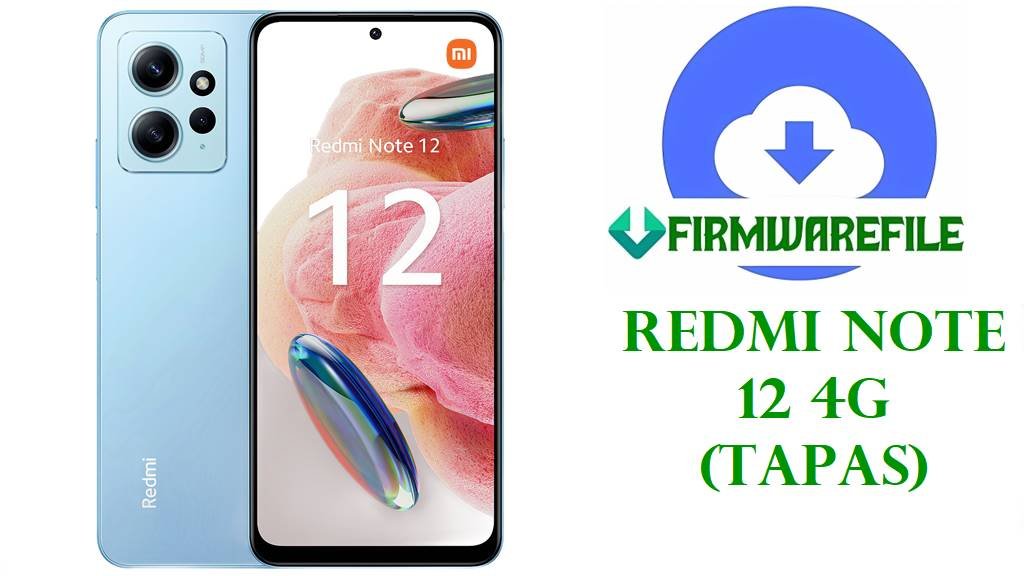
Redmi Note 12 4G (tapas) HyperOS Fastboot ROMs & Custom Recovery Downloads
The Xiaomi Redmi Note 12 4G (codename tapas) is a Snapdragon 685-based budget phone with a 6.67-inch 120Hz AMOLED display, triple rear camera, and 5000 mAh battery, running Android 13 and upgradable to HyperOS based on Android 14 and 15. This guide focuses on safe use of official HyperOS fastboot images and common custom recoveries for users who need to recover a bricked unit, return to stock, or prepare for advanced modifications.
Users typically flash the stock firmware on this model to fix bootloop or soft-brick issues, remove unstable custom ROMs, or clean up persistent software problems that normal factory resets cannot solve. Advanced owners may also use fastboot ROMs to move between global, Indian, or Turkish regional builds for modem behavior, language packs, or region-specific services, but this always carries risk if cross-region flashing is not done carefully.
File Selection Guide
Before downloading anything, match the ROM to your exact device variant, including region, to avoid boot or network problems. For the Redmi Note 12 4G, check the model number on the box or in Settings > About phone (e.g., 23021RAAEG Global, 23027RAD4I India, or 23028RA60L LATAM) and confirm the codename is tapas, not the NFC variant topaz.
- Choose the correct region:
- VMTMIXM – Global fastboot ROM for international units.
- VMTINXM – India fastboot ROM for the Indian market model.
- VMTTRXM – Turkey fastboot ROM tuned for Turkish carriers and regulations.
- Use Xiaomi official fastboot images (
.tgz) when you want to unbrick, go fully back to stock, or relock the bootloader; they are designed for Mi Flash and full system restore. - Use the xiaomi.eu custom ROM only if the bootloader is unlocked and you understand that this is a community build with modified features and different update behavior compared to stock HyperOS.
- Install TWRP or OrangeFox recovery only if you plan to flash custom ROMs, Magisk, or full-data backups and accept that custom recovery requires an unlocked bootloader and may impact OTA updates and device security.
Redmi Note 12 4G (tapas) Firmware Download
| Device Model | Codename | Region | Build | Android Version | Release Date | Notes | Filename | Size | File Format | Flashing Method | Tool | Bootloader Required | Data Wipe | Downgrade Allowed | Tested | Known Issues | Download |
|---|---|---|---|---|---|---|---|---|---|---|---|---|---|---|---|---|---|
| Redmi Note 12 4G Global | tapas | Global (MI) | OS2.0.203.0.VMTMIXM | Android 15 / HyperOS 2 | 2025-11-06 | Stable global fastboot ROM for unbricking and returning to full stock with latest Android 15 base. | tapas_global_images_OS2.0.203.0.VMTMIXM_20251106.0000.00_15.0_global_af7046ce67.tgz | 6.64 GB | .tgz (fastboot images) | Fastboot (Mi Flash) | Mi Flash Tool / Fastboot | Unlocked for cross-account use; relock only if 100% stock and same region | Recommended clean flash for major Android version jump | Not recommended to downgrade from HyperOS 2 to older branches without tested rollback path | Listed by HyperOS firmware indexes as stable general release. | No specific bugs reported beyond normal HyperOS 2 minor issues | Download |
| Redmi Note 12 4G India | tapas | India (IN) | OS2.0.202.0.VMTINXM | Android 15 / HyperOS 2 | 2025-10-14 | Indian market fastboot package with region-specific apps and modem profile; prefer this for Indian carrier stability. | tapas_in_global_images_OS2.0.202.0.VMTINXM_20251014.0000.00_15.0_in_299e3ae05a.tgz | 5.55 GB | .tgz (fastboot images) | Fastboot (Mi Flash) | Mi Flash Tool / Fastboot | Unlocked for cross-region use; relocking should be done only when back on native region ROM | Clean flash advised when moving from older MIUI/HyperOS versions | Cross-downgrade to older security patch levels can cause anti-rollback issues | Used in Indian firmware collections and reported as stable for daily use. | Occasional regional app bloat and notification behavior differences compared to global | Download |
| Redmi Note 12 4G Turkey | tapas | Turkey (TR) | OS2.0.202.0.VMTTRXM | Android 15 / HyperOS 2 | 2025-10-14 | Turkey-specific fastboot ROM with localized services and regulatory settings, suitable for restoring Turkish retail devices. | tapas_tr_global_images_OS2.0.202.0.VMTTRXM_20251014.0000.00_15.0_tr_a7c06237d0.tgz | 6.07 GB | .tgz (fastboot images) | Fastboot (Mi Flash) | Mi Flash Tool / Fastboot | Unlocked for cross-region flashing; relock on native TR firmware to avoid account lock or boot errors | Full wipe strongly recommended to avoid region-mismatch glitches | Downgrade across HyperOS branches may be blocked by anti-rollback | Used by Turkish firmware sites as reference stock ROM. | Language and payment service availability depends on local regulations | Download |
| Redmi Note 12 4G (Custom) | tapas | xiaomi.eu (Community) | OS1.0.4.0.UMTMIXM (xiaomi.eu build) | Android 14 / HyperOS 1 (mod) | 2024-02 (base Global ROM date) | Community-modified ROM based on Global HyperOS OS1.0.4.0.UMTMIXM with additional languages and optimizations; requires unlocked bootloader. | xiaomi.eu_multi_TAPAS_OS1.0.4.0.UMTMIXM_os1-14.zip | 4.26 GB | .zip (recovery/fastboot script ROM) | Custom recovery or fastboot script, depending on installer | TWRP / OrangeFox / Fastboot script | Unlocked bootloader only; do not lock on xiaomi.eu or any non-official build | Usually flashed with data wipe when coming from stock MIUI/HyperOS | Not recommended as downgrade path from newer HyperOS 2 fastboot releases | Maintained and discussed by xiaomi.eu community users. | Banking and DRM apps may behave differently; OTA updates are community-driven | Download |
| Redmi Note 12 4G Recovery | tapas | Universal | TWRP 3.7.1_12-0 | Android 12–14 compatible | Custom build date (TeamWin) | Touch-based custom recovery for Nandroid backups, ROM flashing, and advanced maintenance on the tapas platform. | twrp-3.7.1_12-0-tapas-TeamWin.img | 105 MB | .img (recovery image) | Fastboot boot/flash to recovery partition | Fastboot | Unlocked bootloader required | Flashing recovery does not wipe data by itself, but many ROM procedures will | Not a downgrade/upgrade file; only a recovery environment | Used widely for Xiaomi devices when building custom ROM workflows. | OTA updates from stock system may fail while custom recovery is installed | Download |
| Redmi Note 12 4G Recovery | tapas | Universal | OrangeFox R11.3_1 | Android 12–14 compatible | Custom build date (OrangeFox) | Feature-rich custom recovery with extra scripting and UI features for installers and power users. | OrangeFox-R11.3_1-tapas.zip | 70 MB | .zip (for recovery flash) | Flashed via existing TWRP/OrangeFox or recovery image installer | TWRP / Recovery | Unlocked bootloader required | No automatic wipe, but many ROM flash operations will clear data | Not used for version downgrades; recovery layer only | Popular among Xiaomi users needing advanced backup and script options. | As with any custom recovery, may interfere with official OTA updates | Download |
Redmi Note 12 4G & Firmware Summary
| Category | Detail |
|---|---|
| Device Name | Xiaomi Redmi Note 12 4G |
| Codename | tapas (non-NFC variant) |
| Chipset | Qualcomm Snapdragon 685 (6 nm), octa-core CPU, Adreno 610 GPU. |
| Display | 6.67-inch AMOLED, 120 Hz, 1080 × 2400 resolution with Gorilla Glass 3. |
| RAM / Storage | 4–8 GB RAM, 64–256 GB UFS 2.2 storage with microSD expansion. |
| Battery & Charging | 5000 mAh Li-Po, 33 W wired charging. |
| Cameras | 50 MP wide + 8 MP ultrawide + 2 MP macro, 13 MP front, 1080p video. |
| Network Support | Dual SIM, GSM / HSPA / LTE with region-dependent LTE bands. |
| Software Base | Ships with Android 13; upgradable to HyperOS / Android 14 and 15 depending on ROM build. |
| Stock ROM Types | HyperOS fastboot ROMs for Global (VMTMIXM), India (VMTINXM), and Turkey (VMTTRXM). |
| Custom ROM Layer | xiaomi.eu OS1.0.4.0.UMTMIXM based on global HyperOS for tapas. |
| Recovery Options | TWRP 3.7.1_12-0 and OrangeFox R11.3_1 builds specific to tapas. |
| Recommended Flashing Tool | Mi Flash / fastboot for official fastboot ROMs; custom recovery for xiaomi.eu ZIP. |
| Typical Use Cases | Unbricking, removing problematic mods, updating across HyperOS branches, or installing community ROMs with unlocked bootloader. |
How to Flash Redmi Note 12 4G (tapas) Firmware
Flashing can permanently erase data and may void warranty if used outside official procedures; always back up important files and ensure at least 60% battery before starting. Use an original or high-quality USB cable and a reliable USB port to reduce the chance of connection drops during flashing.
Method 1 – Flash Official HyperOS Fastboot ROM (.tgz) with Mi Flash / Fastboot
This method is suitable for restoring full stock firmware on Global, India, or Turkey units using the fastboot images from Xiaomi (the .tgz packages in the table).
- Install Qualcomm USB drivers and Mi Flash Tool on a Windows PC, then extract the downloaded
.tgzROM until you see theimagesfolder and flash scripts. For detailed driver and PC preparation concepts similar to Qualcomm-based flashing, see the QFIL stock ROM guide at this reference. - On the phone, enable OEM unlocking and USB debugging in Developer options if possible, then power off and boot into fastboot mode by holding Volume Down + Power until the fastboot logo appears. Keeping the device in fastboot is important so the PC can communicate correctly, similar to generic fastboot flashing procedures described here.
- Connect the device to the PC, open Mi Flash, click “Select” and choose the ROM folder containing the
flash_all.batscript, then press “Refresh” to confirm that the phone is detected. Understanding how these scripts work is similar in principle to fastboot script flashing flows discussed in this fastboot script overview. - At the bottom of Mi Flash, choose the flash mode:
clean all– wipes user data but keeps bootloader unlocked (safest for problem-solving).save user data– tries to retain data; not recommended for serious issues.clean all and lock– relocks bootloader; use only with correct region stock ROM to avoid bricks.
- Click “Flash” and wait until the progress bar reaches 100% and Mi Flash reports success, then allow the phone extra time for the first boot into HyperOS. For a broader conceptual understanding of OEM flash tools across brands, you can compare with the Mi Flash approach described in Xiaomi-related flashing explanations such as this Xiaomi firmware flashing reference.
Method 2 – Install xiaomi.eu HyperOS ZIP via Custom Recovery
This workflow targets experienced users who already unlocked the bootloader and want the xiaomi.eu ROM with modified features and localization based on OS1.0.4.0.UMTMIXM.
- Unlock the bootloader officially through Mi Unlock, then download the xiaomi.eu ROM ZIP for tapas along with a compatible recovery (TWRP or OrangeFox) from the links above. Concepts such as backing up and verifying files before installing custom packages are similar to the OTA/sideload methods explained here.
- Boot the device into fastboot mode and temporarily boot or flash TWRP with a command like
fastboot boot twrp-3.7.1_12-0-tapas-TeamWin.imgfrom a PC with fastboot tools installed. General fastboot usage principles are similar to those outlined for stock firmware flashing using fastboot in this guide. - In TWRP/OrangeFox, create a full Nandroid backup of critical partitions (boot, system, vendor, data if supported) to external storage or microSD so you can revert if something goes wrong. This backup strategy corresponds to the same caution recommended across custom ROM and recovery flashing workflows such as those described for advanced tools on FlashGuideHub.
- Perform a factory reset or wipe
data,cache, anddalvik/art cache, then use the Install option to select the xiaomi.eu ZIP and confirm the flash, waiting until the operation completes without errors. - Reboot to system from recovery and allow several minutes for the first boot; if the phone bootloops, return to recovery, wipe data again, or restore your backup, and consider reverting to an official fastboot ROM if stability is unacceptable.
Method 3 – Flash Custom Recovery (TWRP / OrangeFox)
Flashing a custom recovery on the Redmi Note 12 4G allows advanced tasks like full image backups and custom ROM installs but should only be done after understanding the impact on OTA updates and device security.
- Ensure the bootloader is unlocked via the official Xiaomi unlock tool, then install platform-tools (ADB and fastboot) on your PC and place the
twrp-3.7.1_12-0-tapas-TeamWin.imgin the same folder asfastboot.exe. The basic fastboot preparation steps mirror those explained in fastboot-based flashing procedures such as this reference. - Boot the phone to fastboot mode (Power + Volume Down) and connect it via USB, then check that the device is detected with
fastboot devicesfrom a command prompt or terminal. - Option A (temporary): run
fastboot boot twrp-3.7.1_12-0-tapas-TeamWin.imgto test recovery without modifying the recovery partition; Option B (permanent): usefastboot flash recovery twrp-3.7.1_12-0-tapas-TeamWin.imgfollowed by a direct reboot into recovery. - Once inside TWRP, you can flash OrangeFox by copying
OrangeFox-R11.3_1-tapas.zipto the phone and installing it from the Install menu, then rebooting recovery to switch to the OrangeFox environment. - After installing custom recovery, avoid accepting official OTA updates directly; instead, update ROMs manually via recovery or revert to stock recovery and ROM if you want completely stock OTA behavior.
Frequently Asked Questions
Can I flash a Global (VMTMIXM) fastboot ROM on an Indian Redmi Note 12 4G (VMTINXM)?
Cross-flashing between Global and Indian builds on the Redmi Note 12 4G is technically possible at the fastboot level, but it increases the risk of modem quirks, VoLTE issues, or region-specific feature loss. If you cross-flash, keep the bootloader unlocked and avoid the “clean all and lock” option to reduce the chance of account or anti-rollback related bricks.
What is the difference between the tapas and topaz codenames for the Redmi Note 12 series?
On this generation, tapas refers to the standard Redmi Note 12 4G variant, while topaz is used for the NFC-capable 4G model, which has slightly different firmware and hardware configuration. Using a topaz ROM on a tapas device (or vice versa) can lead to missing NFC support, radio problems, or complete boot failure, so always confirm the codename in the ROM listing before flashing.
Will flashing xiaomi.eu OS1.0.4.0.UMTMIXM improve gaming performance on the Redmi Note 12 4G?
The xiaomi.eu build for tapas mainly focuses on de-bloating, adding languages, and adjusting region settings rather than changing the underlying Snapdragon 685 performance characteristics. Some users may see smoother behavior due to fewer background services, but gaming limitations from the GPU and thermal design remain, so expectations should stay moderate for heavy titles.
Does moving from MIUI 14/HyperOS 1 to HyperOS 2 via fastboot erase my data?
When upgrading across major Android or HyperOS generations using fastboot ROMs, a clean flash with data wipe is strongly recommended for stability, even if “save user data” appears in Mi Flash. Attempting to keep data across a large jump can cause app crashes, configuration conflicts, or unusual battery drain, especially on a mid-range device like this.
What should I do if the phone is stuck in a bootloop after flashing a fastboot ROM?
If the Redmi Note 12 4G keeps rebooting at the HyperOS logo, first verify that you used a correct tapas fastboot ROM for your region and then reflash using the “clean all” option to ensure all partitions are properly rewritten. If the issue persists, confirm that the device is not suffering from hardware damage and consider returning temporarily to the previous known-good firmware version if anti-rollback rules allow it.
Will installing TWRP or OrangeFox affect OTA updates on this model?
Installing a custom recovery typically breaks seamless use of official OTA packages, because update scripts usually expect the stock recovery to be present and unmodified. Users who rely on automatic updates from Xiaomi should keep stock recovery, while those using TWRP or OrangeFox should plan to update manually using recovery or full fastboot ROMs.
Is the Redmi Note 12 4G still suitable as a daily driver after multiple fastboot flashes?
Flashing stock firmware multiple times does not inherently degrade the hardware, but repeated cross-region experiments and partial flashes raise the risk of configuration mistakes that affect network or battery behavior. Treat fastboot flashing as a repair and maintenance tool rather than something to use casually, and document each change so you can revert to a stable configuration when needed.