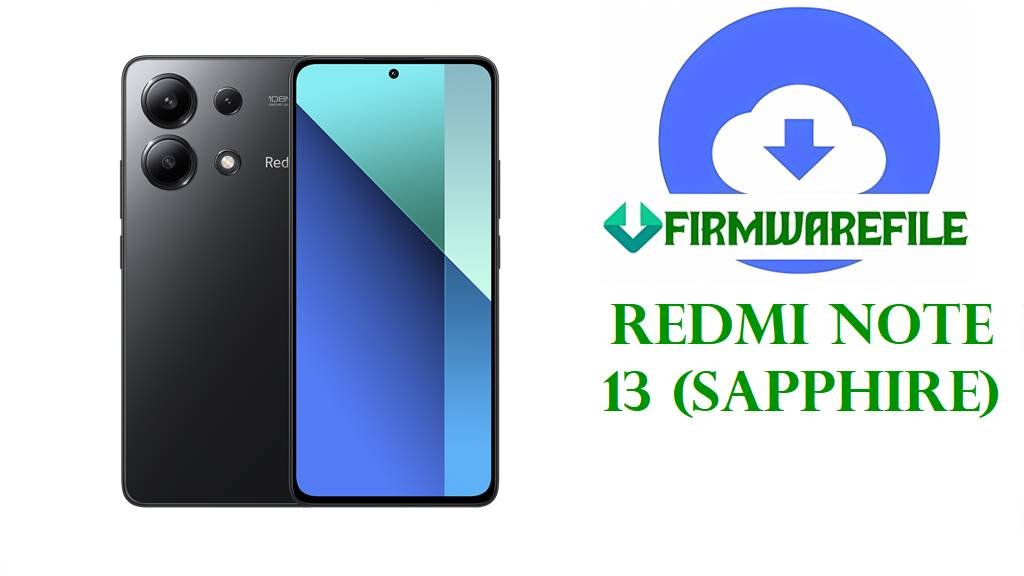
Redmi Note 13 (sapphire) Stock ROM & HyperOS 2 Official Firmware Flash Files
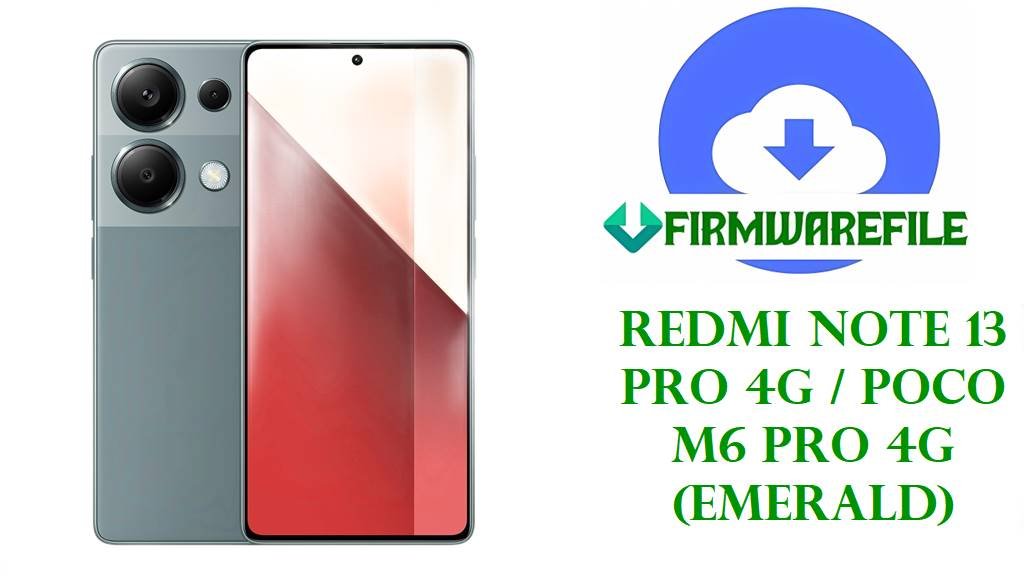
The Redmi Note 13 4G (codename sapphire) is a budget‑friendly Xiaomi phone with a 6.67‑inch AMOLED 120 Hz display, Snapdragon 685 chipset, 5000 mAh battery and up to 8 GB RAM, designed for everyday social, media and light gaming use.
The official HyperOS 2 Android 15 stock firmware flash files below let you clean‑flash the Redmi Note 13, unbrick soft‑bricked phones, fix bootloops and software errors, and restore stable performance when you choose the correct Global or GLOBAL_DC official firmware for your exact device.
Flashing the wrong stock ROM or HyperOS flash file can permanently brick your Redmi Note 13, wipe all personal data, break network features, or block official OTA updates. Always match the codename (sapphire), region code (VNGMIXM vs VNGMIDC) and Android/HyperOS version, verify the firmware checksum, back up your data and follow a trusted fastboot flashing guide before using any official firmware or flash file.
Download Official Firmware for Redmi Note 13 (sapphire)
Here you can download Redmi Note 13 4G (sapphire) HyperOS 2 Android 15 stock firmware packages: the standard Global fastboot ROM and a special GLOBAL_DC carrier‑branded Global fastboot ROM. The VNGMIXM build is the normal Global stable stock ROM flash file, while VNGMIDC (GLOBAL_DC) is a carrier‑specific Global firmware that should only be used on devices that originally shipped with a GLOBAL_DC ROM.
| Filename | Region / Channel | File Size | Build Version | Android / HyperOS | Build Date | Flashing Type | Notes | Download |
|---|---|---|---|---|---|---|---|---|
| sapphire_global_images_OS2.0.207.0.VNGMIXM_20251103.0000.00_15.0_global_dbcec235d3.tgz | Global (VNGMIXM) | 7.08GB | OS2.0.207.0.VNGMIXM | HyperOS 2 / Android 15 | 2025‑11‑03 | Fastboot stock ROM | Official Global stock firmware / flash file for all regular sapphire Global devices; recommended for fixing bootloops, system errors and for clean HyperOS 2 installs. | Download Global Stock ROM OS2.0.207.0 (Mi Cloud Server) |
| sapphire_dc_global_images_OS2.0.3.0.VNGMIDC_20250326.0000.00_15.0_global_dc_c9491e8165.tgz | GLOBAL_DC (VNGMIDC) | 4.88GB | OS2.0.3.0.VNGMIDC | HyperOS 2 / Android 15 | 2025‑03‑26 | Fastboot stock ROM (carrier) | Special Global_DC carrier‑branded official firmware; only flash on Redmi Note 13 units that shipped with a GLOBAL_DC / VNGMIDC ROM, otherwise you risk bricking or OTA issues. | Download GLOBAL_DC Stock Firmware OS2.0.3.0 (Mi Cloud Server) |
Redmi Note 13 (sapphire) Firmware Details
| Device Name | Redmi Note 13 4G (Global) |
|---|---|
| Codename / Models | sapphire – models 23129RAA4G, 23129RA5FL and related Global variants. |
| Chipset | Qualcomm Snapdragon 685 (6 nm), octa‑core CPU, Adreno 610 GPU. |
| Display | 6.67‑inch AMOLED, 1080×2400, 120 Hz refresh rate, Gorilla Glass 3. |
| Battery | 5000 mAh with 33 W fast charging; some users report battery drain and idle drain under HyperOS if settings are not optimized. |
| Software | Android 13 at launch, upgradable to Android 15 with HyperOS 2; official fastboot stock ROMs are provided as TGZ flash files. |
| Main Issues Reported | Battery drain (including overnight), UI lag or stutter, app crashes and occasional bootloops or failed OTA updates when switching to new HyperOS builds. |
| Use Cases for These Files | Unbrick soft‑bricked devices, fix bootloops and system errors, revert from custom ROMs to official firmware, and perform clean stock ROM installs for better stability. |
| Flashing Tools | Mi Flash Tool or fastboot command line for TGZ HyperOS stock firmware; both Global and GLOBAL_DC use the same fastboot‑based method. |
| Bootloader Status | Official fastboot ROMs generally support locked bootloaders when flashing the same region/channel; bootloader unlock is required only for custom ROMs, not for these official firmware files. |
Flashing Requirements
- Backup your data: All stock firmware flashes can erase apps, settings and internal storage, so back up first.
- Battery & cable: Charge the Redmi Note 13 to at least 50 % and use a good USB‑C cable and stable USB port while flashing official firmware.
- Drivers & tools: Install Xiaomi/Qualcomm USB drivers and Mi Flash or platform‑tools fastboot on a Windows PC before using any flash file.
- Correct variant: Confirm codename sapphire and channel (Global VNGMIXM vs GLOBAL_DC VNGMIDC) with
fastboot getvar productor Settings before flashing.
How to Flash the Firmware
Method 1: Flash Official HyperOS Stock ROM with Mi Flash Tool
- Download & extract the stock ROM: Download the correct
sapphire_*_images_OS2.0.xxx.VNGMI*TGZ file (Global or GLOBAL_DC) from the table and extract it on your PC until you see animagesfolder andflash_all.batscript. - Install drivers & enter fastboot: Install Xiaomi/Qualcomm USB drivers, power off the phone, then hold Volume Down + Power to enter fastboot mode and connect the phone to your PC via USB.
- Load firmware in Mi Flash: Open Mi Flash Tool, select the extracted stock firmware folder, and choose clean all to perform a fresh official firmware installation.
- Start flashing: Click Flash and wait while Mi Flash writes all partitions; do not disconnect the USB cable or turn off the PC until the process completes successfully.
- First boot: After Mi Flash reports success, the Redmi Note 13 will reboot into HyperOS 2; the first boot after a clean stock ROM flash can take several minutes while apps are optimized.
For screenshots, troubleshooting, and download links for Mi Flash and drivers when flashing Xiaomi stock firmware, follow this full tutorial: Full Guide: How to Flash Xiaomi Stock Official Firmware.
Method 2: Fastboot Command‑Line Flash (Advanced)
- Set up platform‑tools: Install Android platform‑tools (ADB/Fastboot) on your PC and extract the
sapphire_*_images_OS2.0.xxx.VNGMI*stock firmware TGZ in an easy‑to‑reach folder. - Connect in fastboot mode: Boot the phone to fastboot (Volume Down + Power), connect via USB, and verify with
fastboot devicesthat the device is detected. - Run flash script: From a terminal opened in the ROM folder, run the provided
flash_all.bat(Windows) or equivalent script to automatically flash all stock firmware partitions. - Wait for completion: Do not interrupt the process; once the script finishes, the device will reboot to HyperOS 2 Global or GLOBAL_DC stock ROM depending on the file you used.
- Reconfigure device: After boot, go through setup, restore your backup and re‑check battery and performance under the fresh stock firmware.
Frequently Asked Questions (FAQs)
What Redmi Note 13 problems can these stock ROMs fix?
Flashing the correct Global or GLOBAL_DC stock firmware can fix bootloops, remove malware or bad mods, repair broken system apps, and often reduce battery drain and lag caused by corrupted OS files or failed updates.
How do I know if my phone uses Global or GLOBAL_DC firmware?
Check Settings > About phone > Version or run fastboot getvar product; devices that shipped on a carrier‑tied GLOBAL_DC ROM show a VNGMIDC string, while normal retail Global units use VNGMIXM, and you must only flash the matching channel.
Is GLOBAL_DC official firmware safe to use on any Redmi Note 13?
GLOBAL_DC is still official firmware, but it is carrier‑specific; flashing it onto a standard VNGMIXM Global device can cause network, OTA or activation issues, so it should only be used on phones that originally came with GLOBAL_DC.
Can these HyperOS 2 stock ROMs fix battery drain issues?
A clean HyperOS 2 stock firmware install can help if drain is caused by OS corruption, but you should also disable unnecessary background apps, optimize battery settings and update to the latest stable build for the best results.
Is bootloader unlock required to flash these official fastboot ROMs?
For same‑region official fastboot stock ROMs on Xiaomi devices like the Redmi Note 13, flashing via Mi Flash in authorized modes typically works with a locked bootloader, while unlock is mainly required for custom ROMs.
What if my Redmi Note 13 is hard‑bricked and does not enter fastboot?
If the phone cannot reach fastboot mode at all, standard stock ROM flash files are not enough and you may need authorized EDL flashing or professional repair tools at a service center.