Xiaomi 17 HyperOS 3 OS3.0.30.0 Firmware Flashing Guide: Official ROM + Fix Bootloop & Thermal Throttling Issues
Is your Xiaomi 17 experiencing unexpected reboots, bootloop cycles, or failing to apply the latest HyperOS 3 update? These issues often signal corrupted system files or incomplete firmware installations. The most reliable solution is to flash the official Xiaomi 17 firmware directly from your computer, bypassing the standard update mechanism entirely.
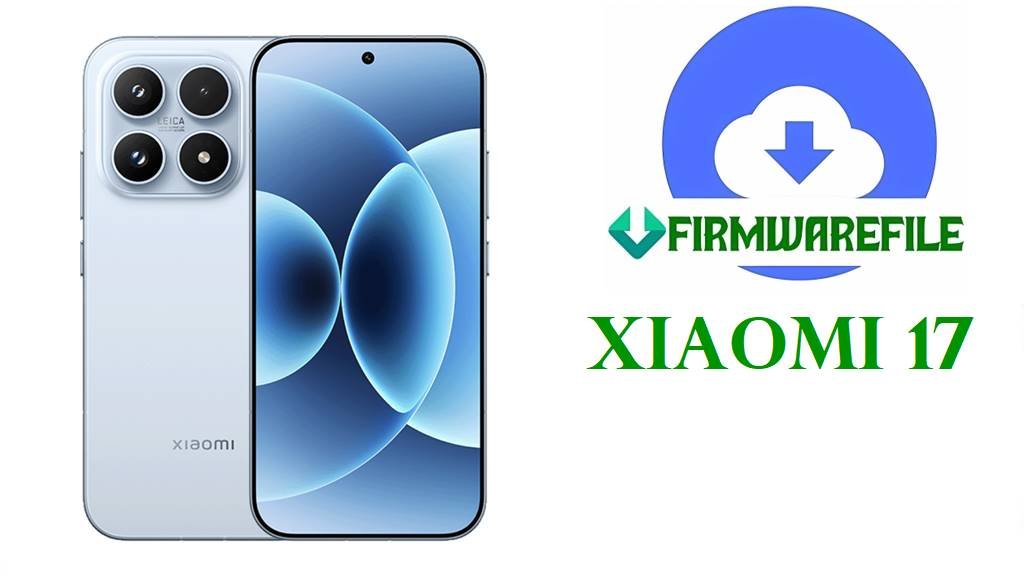
The Xiaomi 17—codenamed pudding—is powered by Qualcomm’s flagship Snapdragon 8 Elite Gen 5 processor running HyperOS 3 on Android 16. This guide provides the latest official firmware versions (OS3.0.30.0.WPCCNXM, released October 31, 2025) in three formats: Fastboot, Recovery, and OTA. Flashing this firmware will help you:
- Resolve persistent bootloop and repeated crashes
- Fix HyperOS update failures and installation errors
- Recover from thermal throttling issues (Snapdragon 8 Elite Gen 5 known concern)
- Eliminate microphone and notification delays reported by early adopters
- Return to certified factory software with security patches
The Xiaomi 17 uses Qualcomm’s new Snapdragon 8 Elite Gen 5 chipset, which is known for aggressive thermal throttling. Under sustained load, this processor reduces performance to approximately 30% of its capacity. If your device frequently shuts down apps, closes games abruptly, or shows excessive heat warnings, this firmware flash may not resolve the underlying hardware concern—consider contacting Xiaomi service for thermal assessment. Additionally, this is a China Regional firmware. Flashing requires unlocked bootloader and use of Xiaomi Flash Tool. The operation will delete all saved data, so back up everything before you begin.
Xiaomi 17 Device Information
| Detail | Information |
|---|---|
| Device Name | Xiaomi 17 (codename: pudding) |
| Model Number | 25113PN0EC (China) |
| Chipset | Qualcomm SM8850-AC Snapdragon 8 Elite Gen 5 (3nm process) |
| CPU | Octa-core (2×4.6 GHz Oryon V3 Phoenix L + 6×3.62 GHz Oryon V3 Phoenix M) |
| GPU | Adreno 840 |
| RAM | 12GB or 16GB (UFS 4.1) |
| Storage | 256GB or 512GB (UFS 4.1) |
| Display | 6.3 inches LTPO AMOLED, 1220 × 2656 pixels, 120Hz, 3500 nits (peak) |
| Battery | 7000 mAh Si/C Li-Ion, 100W wired + 50W wireless + 22.5W reverse wireless charging |
| OS | Android 16, HyperOS 3 |
| Flashing Tool | Xiaomi Flash Tool (Fastboot method) |
| Bootloader Status Required | Unlocked (mandatory for flashing) |
| Notable Features | IP68 water resistance (1.5m/30min), Dragon Crystal Glass, ultrasonic fingerprint, Leica-branded cameras |
Download Xiaomi 17 Official Firmware (OS3.0.30.0.WPCCNXM)
| Firmware Type | Version | Android | Build Date | File Size | Format | Use Case | Download Link |
|---|---|---|---|---|---|---|---|
| Fastboot ROM (Latest) | OS3.0.30.0.WPCCNXM | 16.0 | 2025-10-31 | 10.31 GB | .tgz (compressed) | Complete firmware wipe + clean install; best for bricked devices or severe corruption | Official MIUI Server |
| xiaomi.eu Global ROM | OS3.0.30.0.WPCCNXM | 16.0 | 2025-10-31 | 7.43 GB | .zip (uncompressed) | Modified ROM with Google services, debloated Chinese apps, EU/Global optimizations; not official but widely used | SourceForge Mirror |
| Recovery ROM (OTA) | OS3.0.30.0.WPCCNXM | 16.0 | 2025-10-31 | 7.09 GB | .zip (OTA package) | OTA sideload via recovery; preserves user data if successful; best for minor firmware updates | Official MIUI Server |
⚡ Firmware Comparison & Recommendations
Official Fastboot ROM (10.31 GB): This is the safest choice for complete system recovery. The .tgz format is a compressed archive containing individual partition images (.img files). Flashing via Xiaomi Flash Tool wipes the device completely and installs a fresh copy of HyperOS 3. Recommended if your Xiaomi 17 has severe bootloop, won’t boot to recovery, or failed OTA updates. Expect 15-30 minutes to complete.
xiaomi.eu Global ROM (7.43 GB): This is a community-modified, unofficial ROM based on the official Chinese firmware. xiaomi.eu developers remove Chinese-specific apps (Mi Store, Mi Credit), debloat unnecessary services, disable ads, and add global language packs. The files are NOT signed with Xiaomi’s official keys—your device will require bootloader to be unlocked and may not receive official OTA updates after flashing. This ROM is ideal only if you want a “cleaner” experience and don’t mind sacrificing official update support. Use only if you understand the risks of unofficial ROMs.
Recovery ROM / OTA Package (7.09 GB): This .zip is designed for sideloading via the recovery updater or OTA mechanism. It preserves your apps and data if the flash completes successfully. However, if your device is already stuck in bootloop or can’t access recovery, this method will not work. This is your second choice if the Fastboot method is too daunting.
Our Recommendation: If your Xiaomi 17 is experiencing critical issues, use the Official Fastboot ROM (10.31 GB). It’s the most reliable and carries official Xiaomi signatures. For users outside China who want Google services and debloat, the xiaomi.eu ROM is acceptable but comes with caveats. Avoid mixing methods—pick one approach and follow through.
Before You Begin ⚙️
- 💾 Backup All Data: Flashing erases all files, photos, messages, and app data. Use cloud backup or transfer files to a PC first. (xiaomi.eu ROM preserves data more reliably than Fastboot, but don’t rely on it.)
- 🔋 Charge to at least 80%: A power loss mid-flash can brick your Xiaomi 17 permanently.
- 🖥️ Use a Windows or Mac PC: Linux support exists but is limited. Ensure your PC has 25+ GB free disk space.
- 🔓 Unlock Bootloader: Your Xiaomi 17’s bootloader must be unlocked before flashing. This requires a Xiaomi account and 7-day waiting period. If locked, you cannot proceed.
- 🧩 Install USB Drivers: Download Xiaomi USB drivers and ensure they are properly installed on your PC. Without drivers, your computer won’t recognize the phone.
- 🔌 Use a Quality USB Cable: Damaged cables cause connection loss and bricking. Use the original Xiaomi cable or a certified USB 3.0 Type-C cable.
- ⚠️ Disable Antivirus Temporarily: Windows Defender and third-party antivirus may interfere with the flashing tool. Disable them during the process.
📱 Quick Flashing Guides
Method 1: Fastboot Flashing (Official Firmware) – RECOMMENDED
This method uses the official pudding_images_OS3.0.30.0.WPCCNXM_20251031.0000.00_16.0_cn_e6021ff141.tgz fastboot ROM.
- Prepare Your PC: Download Xiaomi Flash Tool (MiFlash) on your computer. Extract both the Xiaomi Flash Tool and the firmware
.tgzfile to separate folders on your PC. Rename the extracted fastboot ROM folder to something simple likepudding_OS3.0.30.0if the original name is too long. - Boot to Fastboot Mode: Turn off your Xiaomi 17 completely. Press and hold Volume Down + Power button together for 5-7 seconds until you see the Fastboot logo and text on screen. Release the buttons. Do not power off after this point.
- Connect to PC: Plug your Xiaomi 17 into the PC using a USB Type-C cable. The fastboot mode should stay active while connected.
- Open Xiaomi Flash Tool: Run XiaoMiFlash.exe on your computer. Click the refresh button (circular arrow icon) on the right side. If drivers are installed correctly, your device should appear in the device list on the left.
- Select ROM Folder: Click Select (or the folder icon) and navigate to your extracted fastboot ROM folder (
pudding_OS3.0.30.0). The tool will scan the folder and populate the partition list. Ensure the option is set to “clean all” (not “clean all and lock”). Leave other settings at default. - Start Flashing: Click the green FLASH button. A progress window will appear. Do not unplug the USB cable or restart the PC during this time. The flashing process takes 10-25 minutes depending on your PC speed and USB cable quality.
- Wait for Completion: Once finished, you’ll see a green checkmark (✓) and “Flash success” message. The Xiaomi 17 will automatically reboot into the new firmware. First boot may take 3-5 minutes as the system initializes.
For detailed step-by-step photos, driver installation, and troubleshooting, please refer to our comprehensive guide here:
Full Tutorial: How to Flash Xiaomi Firmware with Xiaomi Flash Tool (Fastboot Method)
Method 2: Recovery ROM / OTA Sideload
Use the pudding-ota_full-OS3.0.30.0.WPCCNXM-user-16.0-1965e29755.zip recovery package.
- Precondition: Your Xiaomi 17 must be able to power on and access the recovery menu. If the phone is stuck in bootloop and won’t access recovery, use Method 1 (Fastboot) instead.
- Download Recovery ROM: Transfer the
pudding-ota_full-OS3.0.30.0.WPCCNXM-user-16.0-1965e29755.zipfile to your Xiaomi 17’s internal storage via USB cable or sideload it via adb (advanced users). - Boot to Recovery: Power off the Xiaomi 17. Press and hold Volume Up + Power (or Volume Down + Power on some versions) until the Xiaomi logo appears, then release. Continue holding until recovery menu appears.
- Select Update Package: In recovery, use Volume buttons to navigate and Power button to select. Choose “Install update.zip from Storage” (exact wording may vary) and locate your ZIP file on internal storage.
- Confirm & Wait: Select the ZIP file and confirm. Flashing will begin automatically. Do not power off the device. Wait 10-20 minutes for completion. On success, select “Reboot System Now”.
For a detailed guide on this method and recovery menu variations across Xiaomi models, please refer to:
Full Tutorial: How to Sideload OTA Firmware via Recovery
Method 3: xiaomi.eu Global ROM (Community ROM – Not Official)
Use the xiaomi.eu_PUDDING_OS3.0.30.0.WPCCNXM_16.zip file if you prefer a debloated, Google-friendly experience.
- Prerequisites: Bootloader must be unlocked. This is an unofficial ROM and requires fastboot flashing similar to Method 1. xiaomi.eu ROMs are modified from official Chinese firmware and contain removed Chinese apps, disabled ads, and added language packs—but lack official Xiaomi signatures.
- Prepare on PC: Download Xiaomi Flash Tool and extract the xiaomi.eu
.zipfile into a folder namedxiaomi_eu_pudding. The tool may show a warning about unsigned/unofficial ROM—ignore it and proceed if you accept the risks. - Boot to Fastboot: Enter fastboot mode (Volume Down + Power) as described in Method 1 and connect to PC via USB.
- Flash ROM: Open Xiaomi Flash Tool, select the
xiaomi_eu_puddingfolder, and click Flash. The process is identical to Method 1 but uses community-modified partitions. After flashing, your device will boot into xiaomi.eu’s HyperOS 3 with Google Play Store pre-installed.
Important Note: After flashing xiaomi.eu ROM, you likely will not receive official Xiaomi OTA updates. Future updates must be manually flashed using the same method. Additionally, if you ever need to reflash official firmware, you may encounter compatibility issues. Proceed only if you are comfortable managing updates independently.
Frequently Asked Questions (FAQs)
- Q1. Can I flash the Xiaomi 17 if my bootloader is locked?
- No. Fastboot flashing requires an unlocked bootloader. If your bootloader is locked, you must first unlock it through Xiaomi’s official process: go to Settings → About Phone, tap the MIUI version repeatedly until “Developer Options” unlocks, then enable bootloader unlock request and wait 7 days. Only then can you proceed with flashing.
- Q2. I flashed the Fastboot ROM but my Xiaomi 17 is stuck in bootloop. What went wrong?
- Bootloop after flashing indicates either: (a) A corrupted download—re-download and verify file integrity using MD5 checksums found on MiFirm.net or MIUIRom.org; (b) USB connection lost mid-flash—use a different USB port or cable and reflash; (c) Thermal throttling issue with the Snapdragon 8 Elite Gen 5 (known issue)—let the phone cool and try again; (d) Defective device—if persistent, contact Xiaomi service. Never “clean all and lock” during flashing; always use “clean all” only.
- Q3. What’s the difference between the official Fastboot ROM and xiaomi.eu ROM?
- The official Fastboot ROM is digitally signed by Xiaomi and receives monthly OTA security updates automatically. The xiaomi.eu ROM is community-modified, removes Chinese system apps, disables ads, enables Google services, and applies multi-language support—but lacks official signatures and you will not receive automatic OTA updates. Choose official if you value update frequency; choose xiaomi.eu if you want a cleaner, ad-free experience and don’t mind manual updates.
- Q4. Does flashing delete my photos, messages, and apps?
- Yes—Fastboot flashing (Method 1) wipes everything, including your internal storage. Recovery ROM flashing (Method 2) may preserve data if successful, but doesn’t guarantee it. Always back up your data via cloud services (Google Drive, OneDrive, Mi Cloud) or USB transfer before flashing. Never assume your data will survive the process.
- Q5. Why does my Xiaomi 17 feel hot after flashing, and does this firmware fix it?
- The Xiaomi 17 uses Qualcomm’s new Snapdragon 8 Elite Gen 5 processor, which is documented to overheat under sustained workloads and throttle performance to ~30% capacity to protect itself. This is a hardware/chipset design characteristic, not a firmware bug. Flashing official firmware will ensure you have the latest thermal management patches, but it cannot solve the inherent thermal limitations of this chipset. If overheating is severe or happens at idle, contact Xiaomi for hardware inspection.