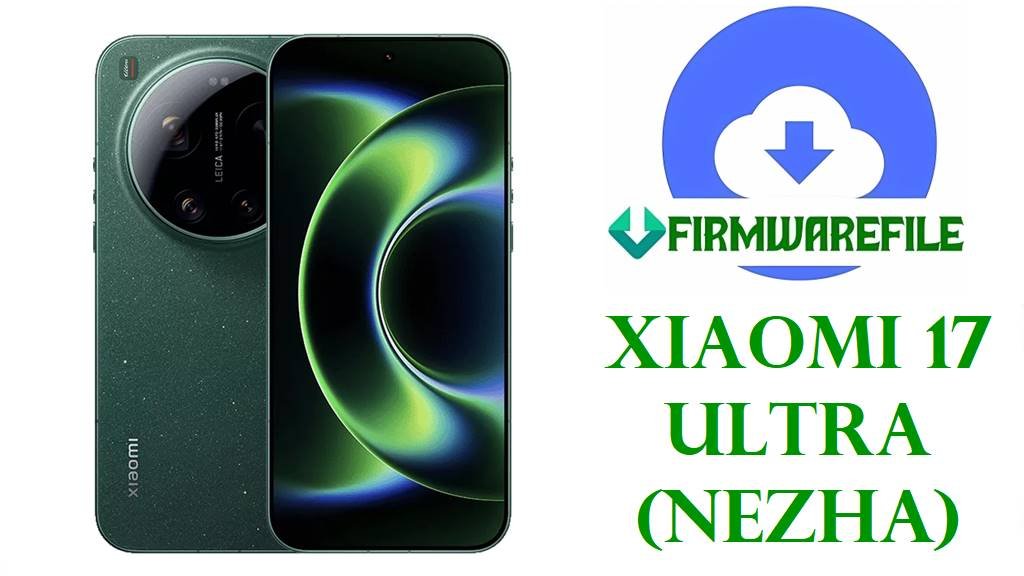
Xiaomi 17 Ultra (nezha) Official China Fastboot ROM OS3.0.10.0.WPACNXM Download and Flash Guide
The Xiaomi 17 Ultra with codename nezha is a flagship camera‑focused smartphone built around a Snapdragon 8 Elite Gen 5 platform, large high‑refresh display, and a high‑end Leica‑tuned imaging system for intensive photography and heavy multitasking.
Owners typically flash the official HyperOS 3 China fastboot ROM on this device to recover from bootloops after system modification, repair a failed OTA update, remove root or custom ROMs, or perform a clean reinstall before resale or service centre inspection.
File Selection Guide
This package is a China‑region HyperOS 3 fastboot ROM for the Xiaomi 17 Ultra (nezha) with build OS3.0.10.0.WPACNXM, where the “CNXM” suffix indicates Chinese firmware without pre‑installed Google services and with China‑specific features.
Before using it, confirm that your phone is a Xiaomi 17 Ultra (nezha) China unit by checking the model in Settings > About phone and, if possible, verifying the codename via adb shell getprop ro.product.device or fastboot getvar product.
This OS3.0.10.0.WPACNXM fastboot ROM is Android 16‑based HyperOS 3; do not attempt to flash it on global or other non‑nezha models, and avoid using it as a downgrade source to older branches unless Xiaomi explicitly documents rollback compatibility.
Xiaomi 17 Ultra (nezha) China Fastboot Firmware Download
The file below is a full fastboot image for Xiaomi 17 Ultra (nezha) China, containing complete system, vendor, and related partitions designed for flashing from a PC via Mi Flash Tool or fastboot scripts.
| Region | Build | Android Version | Release Date | Size | File Format | Notes | Flashing Method | Download |
|---|---|---|---|---|---|---|---|---|
| China (CN) | OS3.0.10.0.WPACNXM | Android 16 | 2026‑01‑11 | 11.65 GB | .tgz (fastboot) | Official HyperOS 3 stable fastboot ROM for Xiaomi 17 Ultra (nezha) China; suitable for full system restore on CN units, includes Chinese apps and no pre‑installed Google services. | Mi Flash Tool / fastboot script | Download China Fastboot ROM |
Xiaomi 17 Ultra (nezha) and Firmware Summary
This summary table focuses on the key hardware and firmware details relevant when deciding whether the OS3.0.10.0.WPACNXM nezha fastboot ROM is appropriate for a specific phone.
| Parameter | Details |
|---|---|
| Device name | Xiaomi 17 Ultra (China variant) |
| Codename | nezha |
| Chipset | Qualcomm Snapdragon 8 Elite Gen 5 (3 nm) flagship SoC with Adreno 840‑class GPU. |
| Display | Large high‑refresh LTPO‑class panel (QHD‑class or near‑QHD) tuned for advanced HDR and gaming responsiveness. |
| RAM / Storage options | Typical flagship tiers such as 12 GB / 512 GB, 16 GB / 512 GB, and 16 GB / 1 TB for camera‑heavy workloads. |
| Battery | High‑capacity cell with fast wired charging; tuned for camera, satellite, and AI features in daily use. |
| Firmware type | Official HyperOS 3 stable fastboot ROM (.tgz) for China region, intended for PC‑based recovery or clean install. |
| Build in this guide | OS3.0.10.0.WPACNXM (China, nezha, Android 16 base). |
| Base Android / HyperOS | Android 16 with HyperOS 3, including UI animation and resource management optimizations. |
| Region characteristics | China ROM (CNXM): Chinese and English languages, China‑focused services, no built‑in Google Play services by default. |
| Recommended flashing tools | Xiaomi Mi Flash Tool on Windows or fastboot/flash.bat scripts for advanced users. |
| Bootloader considerations | Unlocked bootloader often required for manual fastboot flashing; re‑lock only on the correct official ROM for your exact nezha China variant. |
How to Flash Xiaomi 17 Ultra (nezha) OS3.0.10.0 Fastboot ROM
The nezha OS3.0.10.0 fastboot package is large and writes many partitions, so a stable PC, reliable USB‑C cable, and careful selection of options are essential to reduce the risk of soft brick or data loss.
Method 1 – Mi Flash Tool for nezha (Recommended)
This method uses Xiaomi’s flashing utility with a graphical interface and is the most suitable approach for most Xiaomi 17 Ultra China owners restoring the nezha fastboot ROM.
- Install Xiaomi USB drivers and Mi Flash Tool on a Windows PC, then extract
nezha_images_OS3.0.10.0.WPACNXM_20260111.0000.00_16.0_cn_6c8ff5bca5.tgzuntil you see the images and flash_all scripts inside a single folder. - Power off the Xiaomi 17 Ultra, hold Volume Down + Power to enter fastboot mode (fastboot logo), and connect it to the PC using a short, good‑quality USB‑C cable.
- Open Mi Flash Tool, click “Select,” and choose the root directory of the extracted nezha fastboot ROM folder that contains the configuration and partition images.
- Click “Refresh” so your nezha device appears in the list, then choose an option such as “clean all” for a full wipe; avoid “clean all and lock” unless this is the correct official China ROM for your original nezha unit and you understand the implications.
- Press “Flash” and wait until the progress bar reaches 100% and Mi Flash shows success; do not unplug the phone or close the tool until the Xiaomi 17 Ultra reboots into HyperOS 3.
A complete checklist of requirements, compatible Windows versions, and error explanations is available here:
How to flash Xiaomi firmware using Mi Flash Tool.
Method 2 – Fastboot / flash.bat Script for nezha
The nezha fastboot ROM includes batch scripts that issue fastboot commands automatically and are meant for experienced users who are comfortable with a command‑line environment.
- Install Android platform‑tools (ADB and fastboot) on your computer and extract the nezha fastboot archive to a short path (for example
C:\nezha_OS3) with no spaces in the folder name. - Boot the Xiaomi 17 Ultra into fastboot mode (Volume Down + Power) and connect it to the PC, then run
fastboot devicesto confirm that the device ID is visible. - From inside the extracted ROM folder, run
flash_all.batfor a full clean flash,flash_all_except_storage.batto attempt keeping user data, orflash_all_lock.batonly when you are using the correct official China ROM and intend to re‑lock the bootloader. - Leave the Xiaomi 17 Ultra connected while the script flashes all relevant nezha partitions; the device should reboot automatically once the script ends without errors.
- On first boot into HyperOS 3, allow extra time for optimization of apps and system components, then confirm the OS3.0.10.0.WPACNXM build and Android 16 base in Settings > About phone.
For an in‑depth explanation of fastboot‑based firmware flashing and how flash.bat scripts work on Android, see:
Flash Android firmware using fastboot script (flash.bat).
Frequently Asked Questions
How do I verify that my phone is really Xiaomi 17 Ultra (nezha) before flashing?
From a PC with ADB, run adb shell getprop ro.product.device on a booted system or fastboot getvar product in fastboot mode; a Xiaomi 17 Ultra China unit should report a product string containing “nezha”.
Does this HyperOS 3 Android 16 ROM improve camera or AI features on Xiaomi 17 Ultra?
OS3.0.10.0.WPACNXM is a newer HyperOS 3 build that focuses on animations, resource management and assistant capabilities, so camera and AI behaviour should reflect Xiaomi’s tuning for that release rather than offer guaranteed performance “boosts” beyond official changelog expectations.
Is it safe to re‑lock the bootloader after flashing this fastboot ROM?
Re‑locking is only considered safe when using the correct official China ROM for your original nezha device; locking on a mismatched or modified build may trigger verified boot failures and can hard‑brick modern Xiaomi flagships.