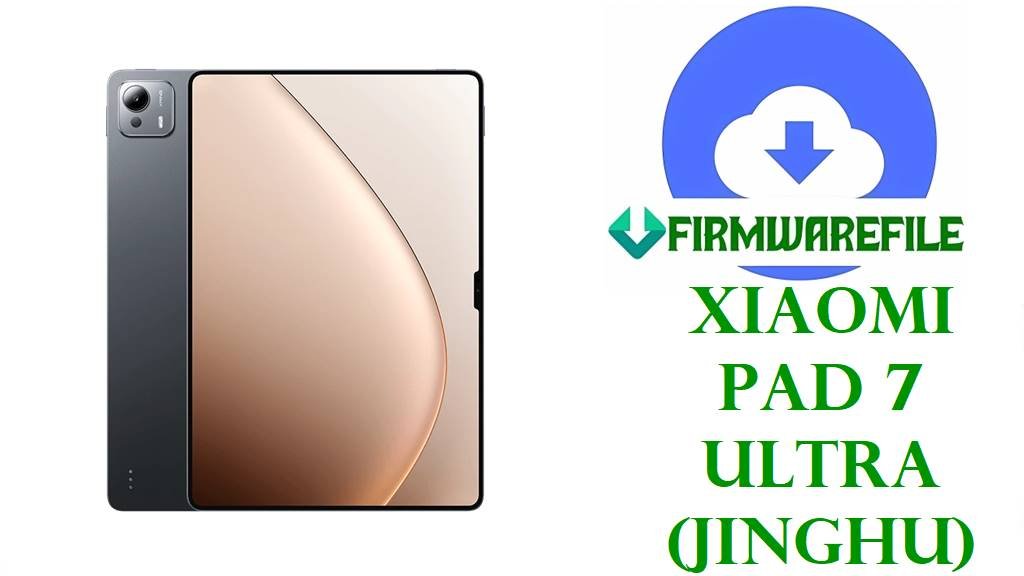
Xiaomi Pad 7 Ultra (jinghu) HyperOS 3.0.5.0 China Fastboot ROM
The Xiaomi Pad 7 Ultra is a high-end 14‑inch Android tablet built around Xiaomi’s in‑house XRing O1 3 nm chipset, offering up to 16 GB RAM and fast UFS 4.x storage for desktop‑class multitasking and creative workloads. Its large, high‑refresh display, powerful eight‑speaker system, and huge 12,000 mAh battery with 120 W fast charging make it ideal for streaming, office work, and even video editing on the go. At the same time, early users have noted quirks like inconsistent battery life during the first charge cycles, occasional app compatibility and fullscreen issues, and rare freezes or crashes in heavy apps that are usually tied to software optimization rather than hardware faults.
The official HyperOS 3.0.5.0.WOXCNXM Android 16 fastboot ROM for codename jinghu delivers a major platform upgrade with HyperOS 3, updated security patches, and stability improvements that help clear out software corruption, fix bootloops, and give the Pad 7 Ultra a clean, fully optimized system.
Xiaomi Pad 7 Ultra Firmware Details
| Device Name | Xiaomi Pad 7 Ultra (China) |
|---|---|
| Codename | jinghu – internal codename for Xiaomi Pad 7 Ultra. |
| Model Identifiers | Wi‑Fi versions such as 25032RP42C and related Pad 7 Ultra SKUs; confirm exact model on the box, back shell and in Settings → About tablet. |
| Region / Branch | China region only, HyperOS China Stable branch with build suffix WOXCNXM. |
| Chipset | XRing O1 3 nm SoC, 10‑core CPU (up to roughly 3.7 GHz) with powerful Immortalis‑G925‑class GPU, offering flagship‑level performance for games and productivity apps. |
| Display | ≈14‑inch high‑resolution LCD/AMOLED panel with high refresh rate (up to 120 Hz) and large surface area that stays relatively cool even under prolonged load. |
| Battery & Charging | ~12,000 mAh battery with 120 W wired fast charging, delivering long screen‑on time for media and multitasking but making initial battery calibration important. |
| Audio | Premium multi‑speaker system (four woofers + four tweeters) with loud, balanced output and strong bass presence for a tablet. |
| Software Families | Shipped with HyperOS 2 on Android 15 and now updated to HyperOS 3.x on Android 16 via OS3.0.5.0.WOXCNXM for the China variant. |
| Firmware Version in This File | HyperOS 3.0.5.0.WOXCNXM, Android 16.0, China stable fastboot ROM. |
| Build / Package Name | jinghu-images-OS3.0.5.0.WOXCNXM-user-20251105.0000.00-16.0-cn-2af0e939d7.tgz fastboot images package. |
| Release / Build Date | Internal build date 2025‑11‑05, with OTA and fastboot distribution recorded around November 10–21, 2025. |
| File Size | ≈8.3–8.9 GB compressed fastboot package (listed around 8.37 GB–8.9 GB on firmware mirrors and download sites). |
| Main Issues Reported on Pad 7 Ultra | Community reports mention inconsistent battery life until several full charge cycles, some UI/app scaling quirks, occasional freezes in heavy video‑editing or creative apps, and minor accessory/OTG behavior oddities. |
| What OS3.0.5.0.WOXCNXM Brings | OS3.0.5.0 introduces HyperOS 3 on Android 16 for Pad 7 Ultra China, plus updated security patch timing and a new generation of system optimizations, as noted by firmware trackers and HyperOS 3 rollout announcements. |
| Thermals & Stability Context | Independent testing shows that, thanks to the large chassis, the Pad 7 Ultra runs relatively cool with minimal performance throttling, so most stability issues are software/firmware, not overheating limits. |
| Flash Method | Fastboot images suitable for Xiaomi Mi Flash Tool on Windows or for fastboot‑script flashing (flash_all.bat style) with an unlocked bootloader. |
| Best Use Cases | Major OS upgrade from HyperOS 2 (Android 15) to HyperOS 3 (Android 16), fixing deep software issues like bootloops, persistent crashes or UI bugs, and restoring a clean stock system on Xiaomi Pad 7 Ultra China units. |
Download Official Firmware for Xiaomi Pad 7 Ultra (jinghu)
This section lists the official China HyperOS 3 fastboot ROM you provided for Xiaomi Pad 7 Ultra (jinghu), including build information and usage notes to ensure you flash the correct package.
| Filename | Region / Device | Android / HyperOS | Build Version | Type | Size | Build Date | Recommended Use | Download |
|---|---|---|---|---|---|---|---|---|
| jinghu-images-OS3.0.5.0.WOXCNXM-user-20251105.0000.00-16.0-cn-2af0e939d7.tgz | Xiaomi Pad 7 Ultra China only (codename jinghu, WOXCNXM branch). | Android 16.0 / HyperOS 3.0.5.0. | OS3.0.5.0.WOXCNXM (China stable). | Official fastboot ROM (.tgz) for Mi Flash / fastboot scripts. | ≈8.37–8.9 GB compressed package. | 2025‑11‑05 internal build; public OTA/fastboot rollout mid‑November 2025. | Ideal for upgrading China Pad 7 Ultra to HyperOS 3 Android 16, fixing bootloops, clearing heavy app glitches, and returning modded systems to clean stock. | Download OS3.0.5.0.WOXCNXM (Xiaomi BigOTA) |
Flashing Requirements
- Backup your data: Fastboot flashing normally wipes apps, accounts, and internal storage, so back up important files to a PC, external drive, or cloud before you start.
- Battery level: Charge the Xiaomi Pad 7 Ultra to at least 50–60 % so it will not power off during the flash.
- Windows PC & drivers: Use a reliable Windows computer, install Xiaomi/XRing‑compatible USB drivers, and connect the tablet with a good USB‑C cable.
- Confirm codename & branch: In Settings → About tablet or via fastboot getvar product, ensure the codename is jinghu and the firmware branch is China WOXCNXM before using this file.
- Unlocked bootloader for fastboot: Manual fastboot or Mi Flash operations usually require an officially unlocked bootloader; if locked, stick to OTA/Recovery updates.
How to Flash the Firmware
Method 1: Xiaomi Mi Flash Tool (Fastboot ROM)
- Prepare tools & ROM: On your Windows PC, install Xiaomi USB drivers and the Xiaomi Mi Flash Tool, then download and extract jinghu-images-OS3.0.5.0.WOXCNXM… so all fastboot images are in one folder.
- Load firmware in Mi Flash: Open Mi Flash, click the option to select firmware, and point it to the extracted jinghu-images-OS3.0.5.0.WOXCNXM directory so the tool maps all partitions automatically.
- Enter fastboot mode: Power off the Pad 7 Ultra completely, then hold Volume‑Down + Power to enter fastboot mode and connect it to the PC via USB‑C.
- Start flashing: Confirm the device is detected in Mi Flash, choose a safe option such as “clean all”, and start the flash; wait patiently until the tool reports success without touching the cable.
- First boot: Reboot the tablet; the first startup on HyperOS 3.0.5.0 Android 16 may take several minutes while apps and system components are optimized.
For a step‑by‑step Xiaomi fastboot walkthrough with screenshots, driver downloads, and troubleshooting, follow this detailed tutorial: Full Guide: Flash Xiaomi Smartphone Firmware with Mi Flash Tool.
Method 2: Fastboot Script (flash_all.bat)
- Install platform tools: Set up Android platform‑tools on your PC, then extract the jinghu-images-OS3.0.5.0.WOXCNXM… package so the .bat scripts and image files share the same folder.
- Connect in fastboot: Boot the Pad 7 Ultra into fastboot mode, connect it via USB, and run fastboot devices on your PC to confirm it is recognized.
- Run the script: Execute flash_all.bat (or the appropriate included script) to automatically flash all key partitions; avoid disconnecting the cable, closing the window, or shutting down the PC until it finishes.
- Let the tablet reboot: When the script completes, the device should reboot into HyperOS 3; if not, long‑press Power to restart once and wait for the boot process to complete.
- Restore & verify: Complete setup, restore backups, then test battery behavior, multitasking performance, and demanding apps over several days to confirm previous issues have improved.
For a deeper explanation of fastboot scripts and safe usage, including how to interpret errors, see: How to Flash Stock Firmware Using a Fastboot Script (flash_all.bat).
Frequently Asked Questions (FAQs)
What Xiaomi Pad 7 Ultra problems can this HyperOS 3 firmware fix?
Flashing the correct jinghu fastboot ROM can repair software‑side issues such as bootloops after failed updates, frequent app crashes, and severe lag or UI glitches caused by corrupted system files. It also provides a clean Android 16 HyperOS 3 base that helps stabilize battery statistics and smooth out early‑firmware quirks seen by some Pad 7 series users.
Does OS3.0.5.0.WOXCNXM improve performance and app stability?
HyperOS 3.0.5.0 is a major generation jump from HyperOS 2, and firmware trackers note that it brings updated Android 16 underpinnings, new system optimizations and more mature HyperOS 3 code for the Pad 7 Ultra. Combined with the powerful XRing O1 chipset and already good thermal behavior, this update can make demanding apps and multitasking feel more consistent, especially if you were experiencing random freezes or app‑level glitches before.
How can I be sure this firmware is compatible with my device?
First, confirm that your tablet is the Xiaomi Pad 7 Ultra (not Pad 7 or Pad 7 Pro) and that the codename reads jinghu in About tablet or via fastboot getvar product. Next, ensure the current firmware branch is China WOXCNXM; if you own a global variant once it exists, you will need its specific regional ROM instead of this China‑only package.
Can this ROM unbrick a soft‑bricked Xiaomi Pad 7 Ultra?
If the tablet still enters fastboot mode and the bootloader is unlocked, flashing the correct jinghu fastboot ROM can often restore devices stuck on the HyperOS logo or looping after a bad update. However, units that cannot reach fastboot or show no signs of life typically require professional repair or EDL‑level tools, not just user‑side flashing.
Is it better to update via OTA or fastboot for normal users?
For tablets that boot normally, official OTA or recovery packages are generally safer and easier, as they are designed to maintain user data when possible and reduce flashing risk. Fastboot ROMs like this one are best reserved for major OS migrations, unbricking attempts, or deep clean installs when OTA updates fail or system corruption is severe.